Managing many online accounts is hard these days. A free password manager helps by storing your login details and filling them in automatically. These tools save time and make your accounts safer by creating strong passwords for each site.
Online threats keep growing, so good password management is a must. This guide shows you the best free password managers. You’ll learn how they work, which features matter most, and how to pick the right one for your needs. Whether you need basic password storage or advanced features like automatic saving across devices, this guide has the information you need.
What is a Password Manager?
A password manager is software that stores and manages your login information for websites and apps. Instead of remembering many complex passwords, you only need to remember one main password to access all your stored information. These tools act like a secure digital vault that protects your data while making it easy to use.
Modern password managers do more than just store passwords. They create strong, unique passwords for each account, fill in login forms automatically, sync your data across devices, and warn you about security problems. The main goal is to make your accounts safer while making it easier to manage your online identity.
How Password Managers Work
Password managers use a simple but powerful method: they encrypt your data with a main password that only you know. When you save a password in a password vault, it’s encrypted before being stored. This means even if someone accesses the stored data, they can’t read it without your main password.
The process usually works like this:
- You create a main password when setting up the password manager
- The software uses this password to encrypt your data
- When you save a new password, it’s encrypted and added to your vault
- When you need to log in to a website, the password manager decrypts your stored details and fills them in automatically
Most password managers use zero-knowledge encryption, meaning the service provider can’t access your data even if they want to. This keeps your private information safe and secure. To learn more about how encryption protects your data, you can read about what is data encryption and why it is important.
Benefits of Using a Password Manager
Using a password manager has many benefits beyond just convenience. Here are the main advantages:
- Better Security: Password managers create strong, unique passwords for each account, stopping the risky habit of reusing passwords across sites.
- Save Time: Automatic form filling saves time by removing the need to type usernames and passwords manually.
- Access on Multiple Devices: Most password managers sync your data across devices, letting you access passwords from your computer, phone, or tablet.
- Security Alerts: Many password managers watch the dark web for breaches involving your accounts and alert you if your information is at risk.
- Secure Sharing: Some password managers let you safely share passwords with family or coworkers without revealing the actual password.
- Digital Legacy: Certain services let you name a trusted person who can access your passwords in an emergency.
- Password Analysis: Many tools check your existing passwords and find weak or reused ones that should be changed.
- Form Autofill: Beyond passwords, many can automatically fill in addresses, payment info, and other form fields.
- Offline Access: Some password managers let you access your passwords even without the internet.
- Regular Updates: Trusted password managers get regular security updates to protect against new threats.
By using a password manager, you’re not just making life easier—you’re taking a big step toward protecting your digital identity from increasingly clever cyber threats.
Understanding Password Security
Password security is the foundation of your online safety. Weak or reused passwords are a top cause of account breaches, with hackers taking advantage of these weaknesses to access your personal information. Understanding password security principles helps you see why password managers are essential tools.
The average internet user has over 100 online accounts, making it impossible to create and remember unique, strong passwords for each one. This leads people to use bad habits like simple passwords, reusing the same password across sites, or writing passwords down. A password manager solves these problems by creating and storing complex passwords that would be too hard for people to remember.
Password Encryption Explained
Password encryption turns your passwords into a coded format that can only be read with the right decryption key. This technology is central to how password managers protect your sensitive information. When you store a password in a password vault, it’s encrypted using advanced methods before being saved.
Most trusted password managers use AES-256 encryption, the same standard used by government agencies and security experts worldwide. This encryption level is virtually unbreakable with current technology, ensuring your passwords stay safe even if the service’s servers are compromised.
Zero-knowledge encryption is another important security feature offered by many password managers. This means your data is encrypted on your device before being sent to the company’s servers. Even the company’s employees can’t access your unencrypted data, as they never have access to your main password.
The Importance of Strong Passwords
Strong passwords are your first defense against unauthorized access to your accounts. A strong password usually includes:
- At least 12 characters
- A mix of uppercase and lowercase letters
- Numbers and special symbols
- No personal information or common words
Creating and remembering such passwords for dozens of accounts is nearly impossible without a password manager. These tools can generate passwords that are truly random and complex, greatly improving your password security.
Weak passwords are vulnerable to various attacks:
- Brute force attacks: Hackers use software to try millions of password combinations until they find the right one.
- Dictionary attacks: Hackers use common words and phrases to guess passwords.
- Credential stuffing: Hackers use passwords leaked from other sites to try to access your accounts on different services.
A password manager protects against these threats by creating unique, complex passwords for each account and storing them safely. This means even if one account is compromised in a data breach, your other accounts stay protected.
Features to Look for in a Free Password Manager
When choosing a free password manager, it’s important to know which features are essential for your security and convenience. While paid versions often offer more advanced features, many free password managers provide strong core features that meet most users’ needs. Knowing what to look for will help you choose the right tool for your specific requirements.
The market offers many password management software options, each with different features and limits. Some excel at automatic password saving, while others focus on password syncing across devices. By evaluating these features based on your needs, you can select a free password manager that offers the best balance of security and convenience.
Automatic Password Saving
Automatic password saving is one of the most valuable features of a password manager. This function lets the tool detect when you create a new account or change a password on a website and automatically offers to save the details to your secure vault. This eliminates the need to manually enter and save each password, making the process smooth and efficient.
When evaluating automatic password saving features, consider these aspects:
- Browser Integration: The password manager should work smoothly with your preferred web browsers through extensions or built-in features.
- Detection Accuracy: The tool should reliably detect login fields and offer to save details without missing important accounts.
- App Support: For mobile users, the password manager should work with apps on your device, not just websites.
- Manual Override: While automation is convenient, you should also be able to manually add passwords if needed.
- Form Filling: Beyond just passwords, many password managers can automatically fill in other form fields like usernames, addresses, and payment information.
- Cross-Browser Compatibility: The feature should work consistently across different web browsers you use.
- Mobile Autofill: Should integrate with mobile operating systems’ autofill services for apps.
- Prompt Customization: Ability to customize when and how the password manager prompts you to save details.
- Password Update Detection: Should detect when you change an existing password and offer to update the saved entry.
- Security Confirmation: Should verify that you’re on a legitimate site before saving or filling passwords.
The best free password managers offer strong automatic password saving features that work consistently across websites and apps, reducing the hassle of managing your digital credentials.
Cross-Platform Synchronization
Password synchronization across devices is crucial for users who access their accounts from multiple devices. Without this feature, you would need to manually transfer passwords between your computer, smartphone, and tablet, defeating the purpose of using a password manager.
When evaluating password synchronization capabilities, consider these factors:
- Device Support: Ensure the password manager supports all the devices you use, including Windows, Mac, Android, and iOS.
- Sync Method: Understand how synchronization happens—whether through the cloud, local Wi-Fi, or another method.
- Sync Limits: Some free password managers limit the number of devices that can sync or how often synchronization happens.
- Offline Access: Check if you can access your passwords when you don’t have an internet connection.
- Real-time Updates: The best tools sync changes almost immediately across all your devices.
- Conflict Resolution: How the service handles conflicts when changes are made on multiple devices at once.
- Bandwidth Usage: Consider how much data the synchronization process uses, especially on mobile networks.
- Selective Sync: Ability to choose which items sync across devices.
- Sync History: Whether you can view or restore previous versions of your password database.
- Initial Sync Speed: How quickly the service can sync a large number of passwords when first setting up on a new device.
For users who switch between devices often, strong password synchronization is not just convenient—it’s essential for maintaining access to all your accounts whenever and wherever you need them.
Security Features
The main purpose of a password manager is to improve your password security, so evaluating the security features of a free password manager is crucial. While all trusted password managers include basic security measures, some offer more advanced protections than others.
Key security features to look for include:
- Strong Encryption: Look for AES-256 encryption, which is the industry standard for secure password storage.
- Two-Factor Authentication (2FA): This adds an extra layer of security by requiring a second form of verification beyond your main password.
- Security Audit: Some password managers analyze your stored passwords to find weak, reused, or compromised passwords.
- Biometric Login: The ability to unlock your password vault using fingerprint or facial recognition on supported devices.
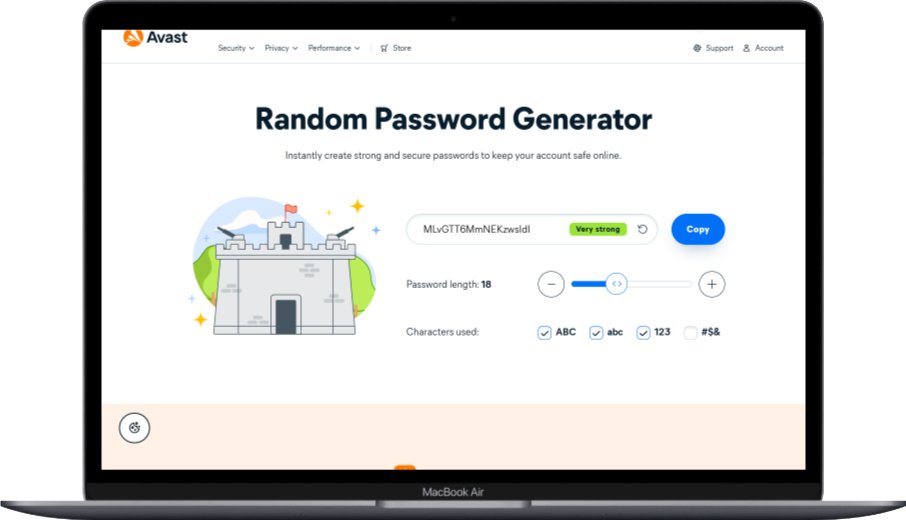
- Password Generator: A built-in tool that creates strong, random passwords according to your preferences.
- Secure Sharing: If you need to share passwords with family or coworkers, look for options that allow secure sharing without revealing the actual password.
- Dark Web Monitoring: Some advanced password managers scan the dark web for your email addresses and alert you if they appear in data breaches.
- Auto-Lock: Automatically locks your password vault after a period of inactivity.
- Secure Logout: Ensures you’re completely logged out when closing the browser or app.
- Privacy Policy: Transparent policies about how your data is handled and protected.
While free password managers may not offer all these features, the best ones include the most critical security measures to effectively protect your sensitive information.
Best Free Password Managers
The market for password management software has grown significantly, with many options available for users seeking secure password storage without paying a fee. Several free password managers stand out for their strong features, user-friendly interfaces, and reliable security measures. This section examines the top free password managers to help you make an informed choice.
When evaluating free password managers, it’s important to consider factors such as ease of use, security features, device compatibility, and limitations of the free version. While paid versions often offer more advanced features, many users find that free password managers meet their basic needs for automatic password saving and password synchronization across devices.
1. Bitwarden
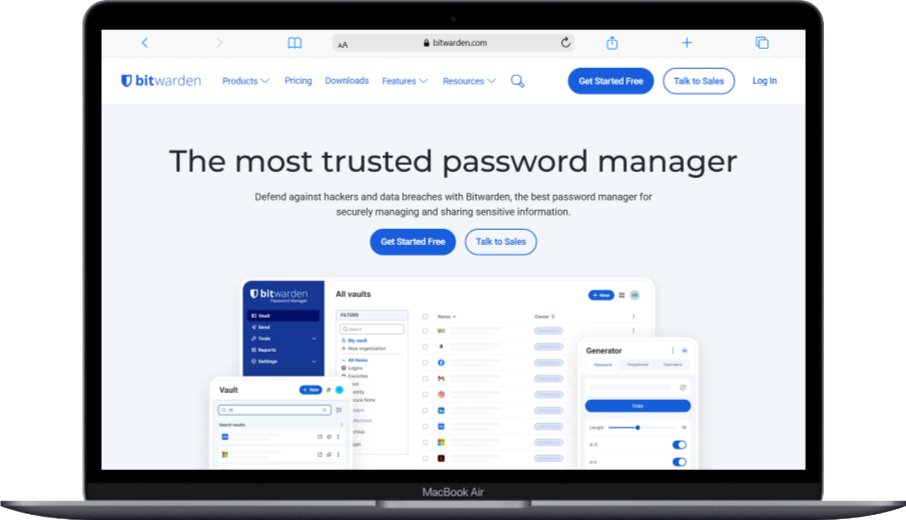
Bitwarden is widely considered one of the best free password managers available today, offering an impressive range of features without requiring a paid subscription. This open-source password manager provides end-to-end encryption for all your data, ensuring that only you can access your sensitive information.
Key features of Bitwarden include:
- Unlimited Password Storage: Unlike many free password managers, Bitwarden doesn’t limit the number of passwords you can store.
- Cross-Platform Support: Bitwarden works seamlessly across Windows, Mac, Linux, Android, and iOS devices.
- Browser Extensions: The service offers extensions for all major browsers, including Chrome, Firefox, Safari, and Edge.
- Password Generator: A strong tool that creates random passwords with customizable options.
- Secure Sharing: You can safely share passwords with other Bitwarden users.
- Two-Factor Authentication: Support for 2FA adds an extra layer of security to your account.
- Self-Host Option: For tech-savvy users, Bitwarden offers the option to host your own server.
- Security Audit: Analyzes your passwords for strength and identifies potential weaknesses.
- Export Options: Allows you to export your data in various formats for backup or migration.
- Open Source: The code is transparent and regularly checked by security researchers.
Bitwarden’s free version is remarkably generous compared to competitors, making it an excellent choice for users who need a complete password manager without paying for premium features.
2. Google Password Manager

Google Password Manager comes built into Chrome and Android devices, making it one of the most accessible free password managers available. While it may not offer as many features as dedicated password managers, its convenience and integration with Google services make it a popular choice for many users.
Notable features of Google Password Manager include:
- Automatic Integration: Works seamlessly with Chrome browser and Android devices without additional installation.
- Cross-Device Sync: Passwords sync across all devices where you’re signed into your Google account.
- Password Checkup: Automatically checks your saved passwords against known breaches and alerts you to compromised credentials.
- Simple Interface: Easy to use with minimal setup required.
- Password Generator: Creates strong passwords when you sign up for new accounts.
- Autofill Integration: Works with Google’s autofill service across apps and websites.
- No Additional Cost: Completely free with no premium version or upgrade options.
- Smart Lock: Integrates with Android’s Smart Lock feature for convenient access.
- Family Sharing: Can share passwords with family members through Google Family Group.
- Security Dashboard: Provides an overview of your password security status.
Google Password Manager is ideal for users who want a simple, no-fuss solution that works across their Google ecosystem without requiring additional setup or subscriptions.
3. LastPass
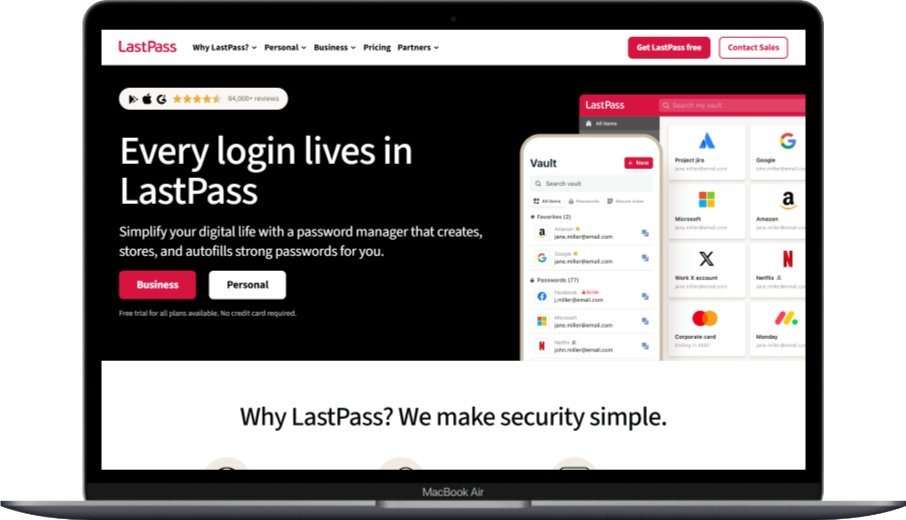
LastPass has been a popular choice among users seeking a free password manager for many years. While the company has made changes to its free tier limitations, it remains a viable option for many users, particularly those who primarily use a single type of device (either all computers or all mobile devices).
Notable features of LastPass include:
- User-Friendly Interface: LastPass offers an intuitive interface that makes it easy for beginners to get started with password management.
- Automatic Password Saving: The service excels at detecting and saving new passwords as you create accounts online.
- Security Dashboard: Provides an overview of your password security, including weak and reused passwords.
- Password Generator: Creates strong passwords with customizable length and complexity options.
- Emergency Access: Allows you to designate trusted contacts who can access your vault in case of emergency.
- Digital Wallet: Stores payment information for easier online shopping.
- Secure Notes: Keep sensitive information like Social Security numbers or Wi-Fi passwords encrypted and secure.
- Form Filling: Automatically fills in personal information on web forms.
- Browser Compatibility: Works with all major browsers through dedicated extensions.
- Security Alerts: Notifies you about security breaches and vulnerabilities.
It’s worth noting that LastPass’s free version now limits users to either unlimited devices of one type (all computers or all mobile devices) or one device of each type (one computer and one mobile device). This limitation may be a dealbreaker for users who need access across multiple device types.
4. KeePass
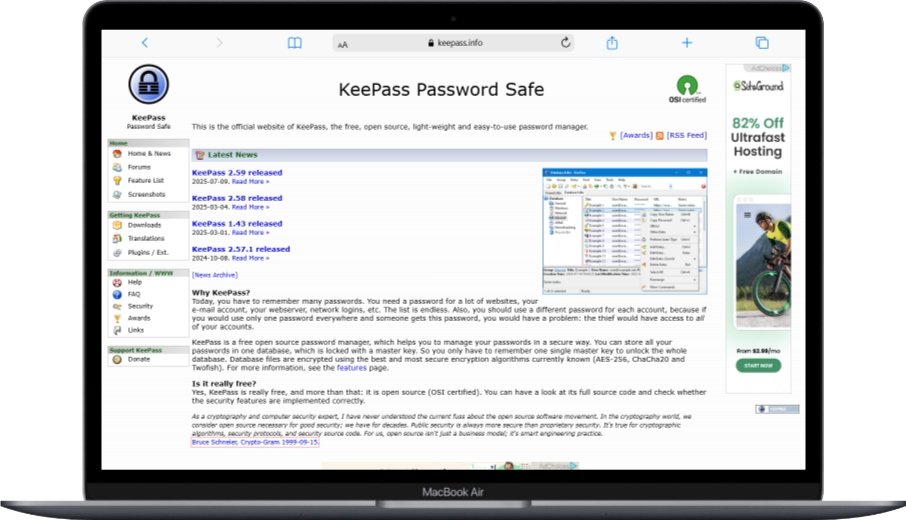
KeePass stands out among free password managers for its unique approach to data storage and its commitment to user privacy. Unlike cloud-based password managers, KeePass stores your password database locally on your device, giving you complete control over your data.
Key features of KeePass include:
- Complete Offline Functionality: Your passwords are stored locally, not in the cloud, enhancing privacy.
- Strong Security: Uses AES-256 encryption to protect your password database.
- Highly Customizable: Offers numerous plugins and extensions that allow you to add functionality as needed.
- Portable Version: Can run from a USB drive without installation, making it ideal for use on public computers.
- No Account Required: You don’t need to create an account or provide personal information to use KeePass.
- Free Forever: The software is completely free with no premium version or subscription model.
- Open Source: The code is available for review by security experts, enhancing transparency.
- Import/Export Options: Supports various formats for importing and exporting password data.
- Auto-Type Feature: Can automatically type passwords into applications that don’t support direct integration.
- Multi-Language Support: Available in numerous languages for international users.
KeePass’s main drawback is its less intuitive user interface compared to cloud-based alternatives. Additionally, synchronizing passwords across devices requires manual effort or third-party solutions, as there’s no built-in cloud sync. However, for users who prioritize privacy and control above all else, KeePass remains an excellent choice.
5. Dashlane
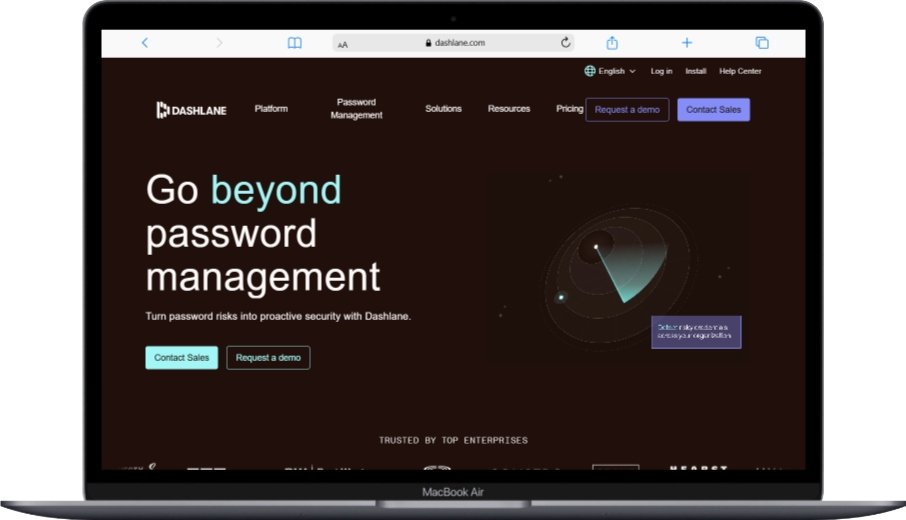
Dashlane is known for its polished user interface and comprehensive security features, making it a popular choice among users who value both aesthetics and functionality. While its free version is more limited than competitors, it still offers valuable features for users with basic password management needs.
Features of Dashlane’s free version include:
- Password Storage: Stores up to 50 passwords on a single device.
- Automatic Password Saving: Detects and saves new passwords as you create accounts online.
- Password Generator: Creates strong, unique passwords with customizable criteria.
- Security Alerts: Notifies you if any of your stored passwords are compromised in data breaches.
- Form Filling: Automatically fills in personal information on web forms.
- Secure Notes: Stores sensitive information like Wi-Fi passwords or PIN codes.
- User-Friendly Interface: Offers an intuitive and visually appealing design that makes password management simple.
- Dark Web Monitoring: Scans the dark web for your email address and alerts you to potential breaches.
- VPN Service: Includes a limited VPN service for secure browsing (in some regions).
- Security Dashboard: Provides a comprehensive overview of your password security status.
The main limitation of Dashlane’s free version is the 50-password cap and restriction to a single device. For users with numerous accounts or those who need access across multiple devices, this limitation may necessitate upgrading to the premium version. However, for those with fewer passwords who primarily use one device, Dashlane’s free version provides a solid password management solution.
Free vs. Paid Password Managers
When choosing a password manager, one of the most important decisions is whether to choose a free version or invest in a paid subscription. Both options have advantages and limitations, and the right choice depends on your specific needs, budget, and security requirements. Understanding the differences between free and paid password managers will help you make an informed decision that balances security, convenience, and cost.
The market for password management software has evolved significantly, with many providers offering strong free versions that meet the basic needs of most users. However, paid versions typically include additional features that may be valuable for power users, families, or businesses. By comparing the offerings of free and paid password managers, you can determine which option provides the best value for your particular situation.
What You Get with Free Versions
Free password managers have become increasingly capable, with many offering core features that were once only available in paid versions. These tools provide essential password security without requiring a financial commitment, making them accessible to virtually everyone. For many users, a free password manager may be all they need to effectively protect their digital identity.
Common features available in free password managers include:
- Basic Password Storage: Most free versions allow you to store an unlimited number of passwords, though some impose limits.
- Automatic Password Saving: The ability to save passwords as you create accounts online is a standard feature in most free versions.
- Password Generator: Tools to create strong, random passwords are typically included in free versions.
- Cross-Platform Access: Many free password managers work across multiple devices, though some limit the number or type of devices.
- Browser Extensions: Extensions for popular browsers enable automatic form filling and password capture.
- Basic Security Features: Essential security measures like encryption and secure storage are standard in all reputable free versions.
- Secure Notes: The ability to store sensitive information beyond passwords is often included.
- Security Alerts: Basic notifications about compromised passwords or security issues.
- Export Functionality: Ability to export your data for backup or migration to another service.
- Community Support: Access to community forums and basic customer support.
Despite these capabilities, free password managers typically have limitations that may be significant for some users. Common restrictions include:
- Device Limitations: Many free versions limit the number of devices you can use or restrict you to either computers or mobile devices.
- Storage Caps: Some free versions limit the number of passwords or other items you can store.
- Advanced Feature Exclusions: Features like emergency access, advanced sharing options, and priority customer support are usually reserved for paid versions.
- Limited Sharing: Free versions often restrict or eliminate the ability to share passwords securely with others.
- No Priority Support: Free users typically receive standard customer support, which may involve longer wait times for assistance.
For many individual users, especially those with basic password management needs, a free password manager provides sufficient security and functionality without requiring a financial investment.
When to Upgrade to Paid
While free password managers offer strong basic functionality, there are situations where upgrading to a paid version makes sense. Paid password managers typically include advanced features that enhance security, convenience, and collaboration, making them valuable for certain users and use cases.
Consider upgrading to a paid password manager if you:
- Need Unlimited Device Access: If you regularly switch between multiple computers and mobile devices, a paid version that removes device limitations may be worth the investment.
- Require Advanced Sharing: Families or teams who need to securely share passwords among multiple users will benefit from the enhanced sharing features of paid versions.
- Want Priority Support: If you rely heavily on your password manager and can’t afford delays in getting help, the priority support included with paid versions may be valuable.
- Need Additional Storage: If you have numerous accounts and need to store more than the free version allows, upgrading may be necessary.
- Value Advanced Security Features: Features like dark web monitoring, advanced 2FA options, and detailed security reports are typically reserved for paid versions.
- Travel Frequently: For frequent travelers, features like travel mode (which temporarily removes sensitive data from your devices) can provide additional security.
- Manage Business Accounts: Businesses and organizations often require the centralized management and administrative controls available only in paid versions.
- Want Enhanced Recovery Options: Paid versions often offer more robust account recovery options if you forget your main password.
- Need Advanced Reporting: For businesses or power users, detailed security reports and analytics can be valuable.
- Require Compliance Features: Organizations that need to comply with specific security regulations may find the compliance features in paid versions essential.
The decision to upgrade to a paid password manager should be based on your specific needs and how much value you place on the additional features. For many individual users, a free password manager provides sufficient security and functionality. However, for families, businesses, or power users who require advanced features, the investment in a paid version may be justified.
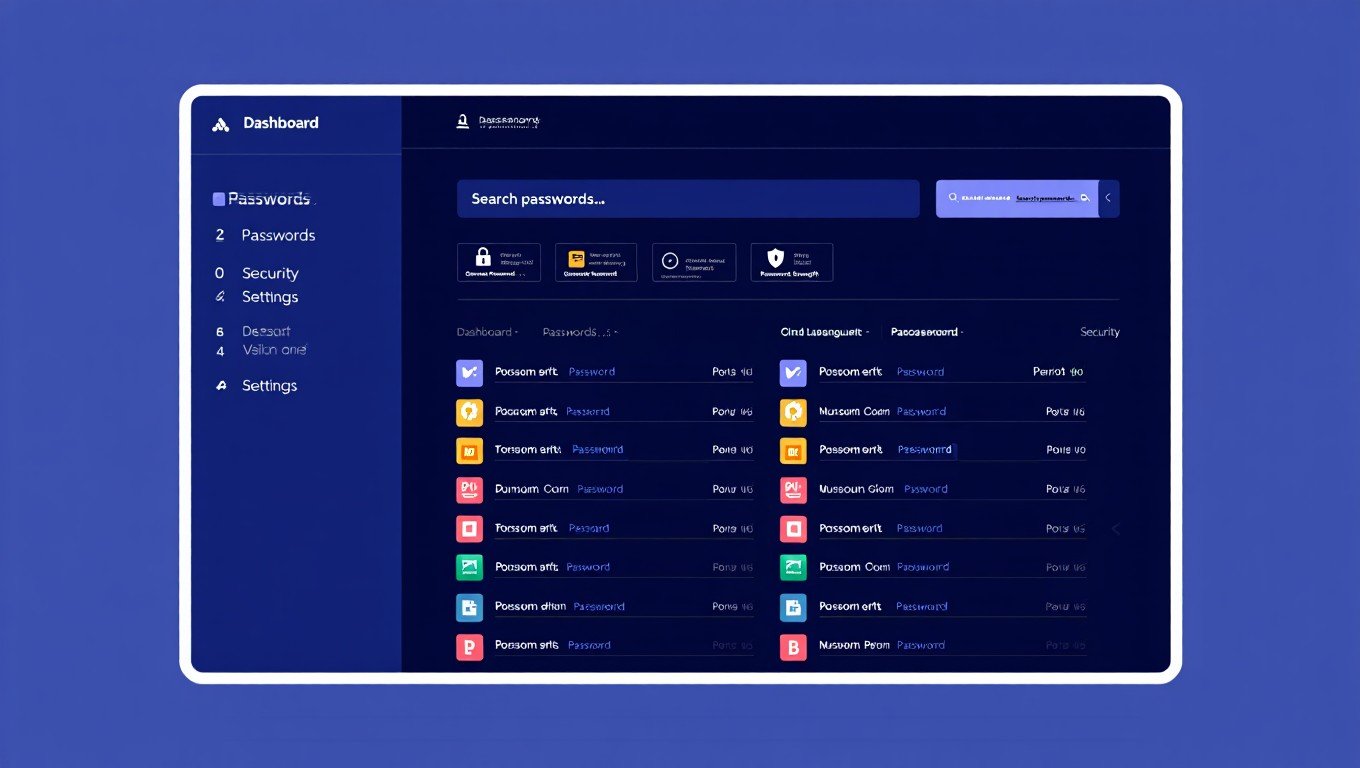
How to Choose the Right Free Password Manager
Selecting the right free password manager requires careful consideration of your specific needs, device usage patterns, and security requirements. With numerous options available, each with its own strengths and limitations, making an informed decision can seem overwhelming. However, by evaluating key factors and understanding your priorities, you can identify the free password manager that best meets your requirements.
The process of choosing a password management software should begin with a clear assessment of how you use digital services and what features matter most to you. Consider factors such as the number of accounts you manage, the types of devices you use, and whether you need to share passwords with others. By aligning these needs with the capabilities of various free password managers, you can narrow down your options and make a confident choice.
For Different Devices
Your choice of free password manager may be influenced by the types of devices you use and how you access your accounts. Different password managers offer varying levels of compatibility and functionality across devices, so it’s important to choose one that works seamlessly with your specific hardware and software setup.
Considerations for different device types include:
For Windows Users:
- Look for free password managers with dedicated Windows applications that integrate well with the operating system.
- Consider browser compatibility if you primarily use Microsoft Edge or other browsers.
- Evaluate whether the password manager offers Windows Hello integration for biometric login.
For Mac Users:
- Seek password managers with native Mac applications that support macOS features like Touch ID.
- Consider Safari integration if you primarily use Apple’s browser.
- Evaluate iCloud Keychain compatibility if you use other Apple services.
For Android Users:
- Look for password managers with well-designed Android apps that support autofill services.
- Consider integration with Android’s built-in autofill features.
- Evaluate compatibility with Chrome and other popular Android browsers.
For iPhone Users:
- Seek password managers that support iOS features like Face ID and Touch ID.
- Consider Safari integration if you primarily use Apple’s browser.
- Evaluate compatibility with Apple’s iCloud Keychain if you use other Apple services.
For Multi-Device Users:
- If you regularly switch between different types of devices (e.g., Windows computer and iPhone), choose a free password manager that doesn’t restrict device types.
- Consider how synchronization works across your devices and whether it meets your needs.
- Evaluate whether the password manager offers a consistent experience across all your devices.
Some free password managers limit the number or type of devices you can use, which can be a significant constraint if you regularly access your accounts from multiple devices. Before committing to a particular password manager, ensure that its device limitations align with your usage patterns.
For Different Users
Different types of users have varying needs when it comes to password management, and the best free password manager for one person may not be ideal for another. By understanding your specific user profile and requirements, you can choose a password manager that best suits your individual needs.
Considerations for different user types include:
For Individual Users:
- Most free password managers offer sufficient features for individual users with basic needs.
- Consider whether you need unlimited password storage or if a limited number will suffice.
- Evaluate the user interface and ease of use, especially if you’re not tech-savvy.
For Families:
- Look for password managers that offer secure sharing features, even in their free versions.
- Consider whether you need separate vaults for different family members.
- Evaluate whether the password manager allows for multiple users under one account.
For Students:
- Consider password managers that offer generous free tiers, as students often have limited budgets.
- Look for cross-platform compatibility if you use multiple devices for schoolwork.
- Evaluate whether the password manager can store other types of information like notes or documents.
For Business Professionals:
- Consider whether the free password manager can separate personal and work accounts.
- Look for features that enhance productivity, such as efficient form filling.
- Evaluate whether the password manager integrates with other business tools you use.
For Tech-Savvy Users:
- Consider password managers that offer advanced features and customization options.
- Look for open-source options if you value transparency and the ability to audit code.
- Evaluate whether the password manager supports advanced security features like 2FA.
For Privacy-Conscious Users:
- Consider password managers that emphasize privacy and data protection.
- Look for options that use zero-knowledge encryption to ensure your data remains private.
- Evaluate whether the password manager stores data locally or in the cloud.
By identifying your specific user profile and priorities, you can narrow down the options and select a free password manager that best meets your unique needs. Remember that the best password manager is one that you’ll consistently use, so ease of use and compatibility with your workflow are important considerations.
Setting Up Your Free Password Manager
Once you’ve chosen the right free password manager for your needs, the next step is to set it up properly to ensure maximum security and convenience. The setup process is generally straightforward, but taking the time to configure your password manager correctly will pay dividends in the long run. This section guides you through the essential steps of setting up your free password manager and getting the most out of its features.
Proper setup of your password management software involves more than just installing the application. It includes creating a strong main password, importing existing passwords, configuring settings for optimal security, and establishing good habits for ongoing use. By following best practices during setup, you can ensure that your password manager provides robust protection for your digital identity while making your online life more convenient.
Installation Process
Installing your chosen free password manager is the first step toward better password security. While the exact process varies depending on which password manager you choose and which devices you use, the general steps are similar across most platforms. Following the installation process carefully will ensure that your password manager is properly configured and ready to protect your passwords.
The typical installation process involves these steps:
- Download the Software: Visit the official website of your chosen password manager and download the appropriate version for your device. Always download from the official website to avoid potentially malicious versions.
- Create Your Account: Most password managers require you to create an account with an email address and main password. Choose a strong, unique main password that you can remember but others would find difficult to guess.
- Install Browser Extensions: For the best experience, install the browser extensions offered by your password manager. These extensions enable automatic password saving and form filling in your web browser.
- Install Mobile Apps: If you use smartphones or tablets, download and install the mobile apps from the official app stores (Google Play Store for Android, App Store for iOS).
- Verify Your Email: Many password managers require email verification to activate your account. Check your email and click the verification link to complete this step.
- Configure Security Settings: Take time to review and adjust the security settings according to your preferences. This may include enabling two-factor authentication, setting up biometric login, or adjusting auto-lock settings.
- Explore the Interface: Familiarize yourself with the password manager’s interface, including where to find saved passwords, how to add new entries, and where to access settings.
- Set Up Backup Options: Configure backup options if available, such as exporting an encrypted copy of your password database.
- Enable Automatic Updates: Ensure that the password manager will automatically update to receive the latest security patches and features.
- Test Basic Functionality: Create a test account or save a test password to verify that the password manager is working correctly.
During installation, pay special attention to any security prompts or permissions requests. While password managers need certain permissions to function (such as the ability to read and fill in web forms), be cautious if the app requests permissions that seem unrelated to its core functions. If something seems suspicious, consider choosing a different password manager.
Importing Existing Passwords
One of the most valuable features of a password manager is its ability to import passwords you’ve already saved elsewhere. This allows you to consolidate all your passwords in one secure location rather than having them scattered across browsers, devices, and other applications. Importing existing passwords is a crucial step in setting up your free password manager effectively.
The process of importing existing passwords typically involves these steps:
- Export from Current Locations: Before importing to your new password manager, you’ll need to export passwords from their current locations. This might include:
- Browser password managers (Chrome, Firefox, Safari, Edge)
- Other password managers you’ve used previously
- Spreadsheets or documents where you’ve stored passwords
- Prepare the Export File: Most exports result in a CSV (comma-separated values) file or another format that your new password manager can import. Review this file to ensure it contains all the information you want to transfer.
- Import to Your New Password Manager: In your new password manager, look for the import option, usually found in settings or tools. Select the appropriate format and upload the file you exported.
- Review Imported Data: After importing, review the imported passwords to ensure they transferred correctly. Check for any missing information or formatting issues.
- Delete Old Passwords: Once you’ve confirmed that all passwords have been successfully imported to your new password manager, delete them from their previous locations to avoid confusion and potential security risks.
- Organize Your Passwords: Take time to organize your imported passwords into categories or folders if the password manager supports this feature.
- Check for Duplicates: Look for and remove any duplicate entries that may have been created during the import process.
- Update Weak Passwords: Identify any weak or outdated passwords in your imported collection and update them.
- Verify Login Functionality: Test a few important accounts to ensure that the imported passwords work correctly.
- Set Up Regular Backups: Configure regular backups of your password database to prevent data loss.
During the import process, you may encounter passwords that are weak, reused, or outdated. This is an excellent opportunity to strengthen your password security by updating these problematic passwords. Many password managers include security analysis features that can help identify passwords that need attention.
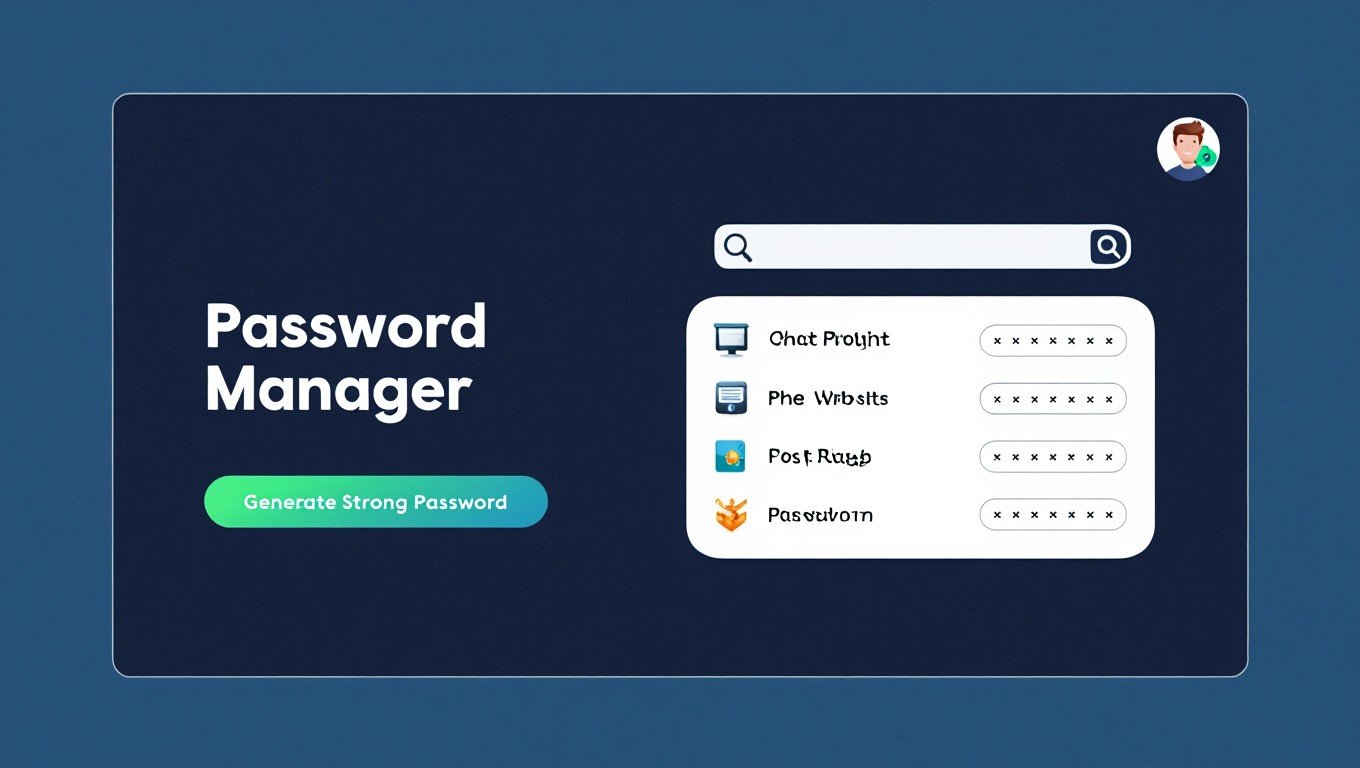
Setting Up Automatic Password Saving
Automatic password saving is one of the most convenient features of a password manager, allowing the tool to detect when you create or update a password and offer to save it to your secure vault. Setting up this feature properly ensures that you never lose a password again and that all your credentials are stored securely in one place.
To set up automatic password saving effectively, follow these steps:
- Enable Browser Extensions: Ensure that the browser extensions for your password manager are installed and enabled in all browsers you use. These extensions are responsible for detecting password fields and offering to save new passwords.
- Configure Extension Settings: In the extension settings, configure options related to password saving. This may include:
- Enabling automatic password capture
- Setting preferences for when the password manager should offer to save passwords
- Configuring notifications for saved passwords
- Adjust Browser Settings: Some browsers have built-in password managers that may conflict with your dedicated password manager. Consider disabling the browser’s built-in password saving to avoid conflicts.
- Test the Feature: Create a new account on a less important website to test whether your password manager detects and offers to save the new password. This confirms that the feature is working correctly.
- Set Up Mobile Autofill: On mobile devices, configure the autofill service to use your password manager. This typically involves going to your device’s settings, selecting the autofill service option, and choosing your password manager.
- Create a System for Manual Saves: While automatic password saving works most of the time, there may be occasions when it doesn’t trigger properly. Develop a habit of manually checking whether important passwords have been saved and adding them manually if necessary.
- Configure Save Prompts: Customize how and when the password manager prompts you to save passwords. Some users prefer immediate prompts, while others prefer notifications that can be addressed later.
- Set Up Password Update Detection: Configure the password manager to detect when you change an existing password and offer to update the saved entry.
- Enable Secure Password Generation: Ensure that the password generator is enabled and configured to create strong passwords when you sign up for new accounts.
- Regularly Review Saved Passwords: Periodically review the passwords saved in your password manager to ensure they’re current and complete. This is also a good time to identify and update weak or reused passwords.
By properly setting up automatic password saving, you create a seamless system that captures and secures your passwords without requiring constant manual intervention. This not only saves time but also ensures that your password security remains strong as you create new accounts and update existing ones.
Password Manager Security Best Practices
Using a password manager is a significant step toward better password security, but to get the maximum benefit, you need to follow best practices that enhance the protection of your digital identity. A password manager is only as secure as the way you use it, and implementing proper security measures ensures that your sensitive information remains safe from unauthorized access.
This section outlines essential security practices for using your free password manager effectively. By following these guidelines, you can strengthen your password security posture and reduce the risk of account breaches, identity theft, and other cyber threats. Remember that password protection is an ongoing process, not a one-time setup, and maintaining good security habits is crucial for long-term digital safety.
Creating a Strong Master Password
Your master password is the key to your password vault, and its strength directly impacts the security of all your stored credentials. A weak master password can undermine even the most secure password manager, while a strong one provides robust protection for your entire digital identity. Creating and maintaining a strong master password is one of the most important security practices when using a password manager.
Follow these guidelines to create a strong master password:
- Make It Long: Aim for at least 12-16 characters. Longer passwords are exponentially more difficult to crack than shorter ones.
- Use a Mix of Character Types: Include uppercase letters, lowercase letters, numbers, and special symbols to increase complexity.
- Avoid Personal Information: Don’t use easily discoverable information like your name, birthdate, address, or other personal details.
- Avoid Common Words and Phrases: Dictionary words and common phrases are vulnerable to dictionary attacks. Instead, consider using a random combination of words or a passphrase.
- Make It Memorable: While your master password should be complex, it should also be something you can remember without writing down. Consider using a passphrase or a mnemonic device.
- Don’t Reuse It: Your master password should be unique and not used for any other accounts.
- Consider Using a Passphrase: A passphrase is a sequence of random words that is longer than a typical password but easier to remember. For example, “CorrectHorseBatteryStaple” is stronger than “P@ssw0rd1” and easier to remember for many people.
- Test Its Strength: Use online password strength testers (from reputable sources) to evaluate how strong your master password is.
- Avoid Patterns: Don’t use predictable patterns on the keyboard or obvious sequences.
- Consider a Password Manager for Your Master Password: While it may seem counterintuitive, some security experts recommend storing your master password in a separate, highly secure location or using a different password manager specifically for this purpose.
Once you’ve created a strong master password, protect it carefully:
- Memorize It: The ideal approach is to memorize your master password rather than writing it down.
- Avoid Digital Storage: Don’t store your master password in plain text on your computer, phone, or in email.
- Be Cautious with Recovery Options: If your password manager offers account recovery options, understand how they work and their security implications.
Remember that if you forget your master password, you may lose access to all your stored passwords permanently. Most password managers cannot recover your master password for security reasons, so it’s essential to choose one you can remember while still being strong.
Enabling Two-Factor Authentication
Two-factor authentication (2FA) adds an extra layer of security to your password manager by requiring a second form of verification beyond your master password. Even if someone somehow obtains your master password, they won’t be able to access your password vault without the second factor. Enabling 2FA is one of the most effective ways to enhance the security of your password manager.
To set up and use two-factor authentication effectively:
- Enable 2FA in Your Password Manager: Look for the security or two-factor authentication section in your password manager’s settings and follow the instructions to enable this feature.
- Choose an Authentication Method: Common 2FA methods include:
- Authenticator Apps: Applications like Google Authenticator, Authy, or Microsoft Authenticator generate time-based codes that you enter when logging in.
- Security Keys: Physical devices like YubiKey that you plug into your computer or tap on your phone to verify your identity.
- Biometric Authentication: Using fingerprint or facial recognition on supported devices.
- SMS or Email Codes: Receiving codes via text message or email (less secure than other methods).
- Set Up Backup Methods: Most 2FA systems allow you to set up backup methods in case your primary method is unavailable. For example, you might save backup codes in a secure location.
- Test the 2FA Process: After setting up 2FA, test it by logging out and back into your password manager to ensure everything works correctly.
- Keep Your 2FA Method Secure: Protect your 2FA method just as you would your master password. For example, if using an authenticator app, ensure your phone is locked and secure.
- Store Backup Codes Securely: If you receive backup codes for 2FA, store them in a secure location separate from your master password.
- Enable 2FA on Connected Accounts: If your password manager connects to other services, enable 2FA on those accounts as well for additional security.
- Regularly Review 2FA Settings: Periodically check your 2FA settings to ensure they’re properly configured and active.
- Consider Multiple 2FA Methods: Some password managers allow you to set up multiple 2FA methods for redundancy.
- Educate Yourself on 2FA Best Practices: Stay informed about the latest 2FA security recommendations and potential vulnerabilities.
When choosing a 2FA method for your password manager, consider these security recommendations:
- Prioritize Authenticator Apps Over SMS: Authenticator apps are generally more secure than SMS codes, which can be intercepted through SIM swapping attacks.
- Consider Security Keys for Maximum Security: Security keys provide the highest level of protection against phishing attacks and account takeovers.
- Avoid Using the Same 2FA Method for Multiple Services: If one 2FA method is compromised, having different methods for different services limits the damage.
Two-factor authentication significantly enhances the security of your password manager, but it’s not infallible. Combine 2FA with other security practices like creating a strong master password and keeping your devices secure for comprehensive protection.
Regular Security Audits
Conducting regular security audits of your stored passwords is essential for maintaining strong password security. Over time, some of your passwords may become outdated, weak, or compromised through data breaches. Regular audits help you identify and address these vulnerabilities before they can be exploited by malicious actors. Many free password managers include built-in tools to assist with these audits, making the process easier and more effective.
To conduct effective security audits of your passwords:
- Use Built-in Security Tools: Most password managers offer security analysis features that:
- Identify weak or reused passwords
- Flag old passwords that haven’t been changed in a long time
- Check for passwords that have been exposed in known data breaches
- Provide an overall security score for your password collection
- Review Password Strength: Examine the strength of each password in your vault. Look for:
- Short passwords (less than 12 characters)
- Passwords that lack complexity (no numbers, symbols, or uppercase letters)
- Passwords that contain personal information or common words
- Check for Password Reuse: Identify passwords that you’ve used across multiple accounts. Reusing passwords is a significant security risk because a breach on one site could compromise multiple accounts.
- Update Old Passwords: Change passwords that haven’t been updated in a long time, especially for critical accounts like email, banking, and social media.
- Prioritize Critical Accounts: Focus first on securing your most important accounts, such as:
- Email accounts (often used for password resets)
- Financial and banking accounts
- Social media accounts
- Work-related accounts
- Accounts that store sensitive personal information
- Use the Password Generator: When updating passwords, use your password manager’s built-in password generator to create strong, unique passwords for each account.
- Set a Regular Audit Schedule: Make password audits a regular habit, such as once every three to six months, or immediately after learning about a major data breach.
- Act on Security Alerts: If your password manager alerts you to potential security issues, take prompt action to address them.
- Document Your Audit Process: Keep track of when you conducted audits, what issues you found, and what actions you took.
- Consider External Security Tools: Supplement your password manager’s built-in tools with external security checkers for additional validation.
Regular security audits are a proactive approach to password security that helps you stay ahead of potential threats. By identifying and addressing vulnerabilities in your password collection, you significantly reduce the risk of unauthorized access to your accounts. Many free password managers make this process easier with automated security analysis and clear recommendations for improvement.
Future of Password Management
The field of password management continues to develop rapidly, driven by technological advances and changing security landscapes. As cyber threats become more sophisticated, password managers are adapting with new features and capabilities to enhance password security and user experience. Understanding these emerging trends can help you anticipate how password management will change in the coming years and how these changes might affect your approach to digital security.
This section explores the future of password management, including emerging technologies, shifting paradigms in authentication, and potential developments that could transform how we protect our digital identities. While passwords remain the primary method of authentication for most online services today, the landscape is gradually evolving toward new approaches that may eventually supplement or even replace traditional passwords.
AI-Powered Features
Artificial intelligence (AI) is increasingly being integrated into password managers, enhancing their capabilities and providing users with more intelligent security solutions. AI-powered password managers can analyze patterns, detect anomalies, and offer proactive security recommendations that go beyond traditional password storage and autofill functions. These intelligent features represent the next frontier in password management, offering users smarter, more adaptive protection for their digital identities.
Emerging AI features in password managers include:
- Intelligent Password Analysis: AI algorithms can analyze your passwords more comprehensively, identifying subtle patterns and vulnerabilities that might escape traditional analysis. This includes detecting passwords that are mathematically similar to each other or identifying passwords that follow predictable patterns.
- Behavioral Biometrics: AI can learn your typical usage patterns—such as how you type, hold your device, or interact with applications—to create a behavioral fingerprint that can detect unauthorized access attempts. This adds another layer of security beyond traditional authentication methods.
- Predictive Security Alerts: By analyzing vast amounts of data about emerging threats and data breaches, AI-powered password managers can predict which of your accounts might be at risk and proactively recommend security measures.
- Adaptive Authentication: AI can adjust security requirements based on context, such as your location, the device you’re using, or the sensitivity of the information you’re accessing. For example, it might require additional verification when logging in from an unusual location.
- Natural Language Processing: Advanced password managers may use natural language processing to understand and organize unstructured information in secure notes, making them more searchable and useful.
- Smart Form Filling: AI can improve the accuracy of form filling by learning from your past behavior and understanding the context of different forms, reducing errors and saving time.
- Phishing Detection: AI can analyze websites and emails to detect potential phishing attempts that might try to steal your credentials, alerting you before you enter your information.
- Anomaly Detection: AI can identify unusual behavior patterns that might indicate a compromised account, such as login attempts from unfamiliar locations or devices.
- Password Strength Prediction: AI can predict the relative strength of passwords based on current cracking technologies and attack methods, providing more accurate security assessments.
- Automated Security Responses: AI can automatically take security actions when threats are detected, such as forcing password changes or locking accounts when suspicious activity is identified.
As AI technology continues to advance, we can expect password managers to become even more intelligent and proactive in protecting users’ digital identities. These AI-powered features will complement traditional security measures, creating multi-layered defense systems that adapt to evolving threats.
Biometric Integration
Biometric authentication methods, such as fingerprint scanning, facial recognition, and iris scanning, are becoming increasingly common in password managers. These technologies offer a convenient and secure way to access your password vault without typing your master password each time. Biometric password managers represent a significant shift toward more natural and user-friendly authentication methods while maintaining strong security standards.
Current and emerging biometric features in password managers include:
- Fingerprint Recognition: Many password managers now support fingerprint authentication on devices with fingerprint sensors, allowing you to unlock your vault with a touch.
- Facial Recognition: Advanced facial recognition technologies, like Apple’s Face ID, are being integrated into password managers for quick and secure access.
- Iris Scanning: While less common in consumer devices, iris scanning offers highly accurate biometric authentication that some password managers may support in the future.
- Voice Recognition: Emerging voice recognition technologies could allow users to access their password vault using their voice as a biometric identifier.
- Behavioral Biometrics: Beyond physical characteristics, password managers are beginning to incorporate behavioral biometrics that analyze how you interact with your device, such as your typing rhythm or how you hold your phone.
- Multi-Modal Biometrics: Advanced systems may combine multiple biometric methods for enhanced security, such as requiring both facial recognition and a fingerprint to access highly sensitive information.
- Continuous Authentication: Rather than a one-time verification, some biometric systems can continuously verify your identity while you’re using the password manager, detecting if someone else takes over your session.
- Gait Analysis: Some systems can analyze how you walk or move your device as a biometric identifier.
- Vein Pattern Recognition: Emerging technologies can map the vein patterns in your fingers or hands for highly secure authentication.
- Heartbeat Detection: Some advanced systems can use your unique cardiac rhythm as a biometric identifier.
Biometric integration offers several advantages for password management:
- Convenience: Biometric authentication is typically faster and more convenient than typing a complex password.
- Security: Biometrics can be more secure than traditional passwords because they’re unique to each individual and difficult to forge.
- User Experience: Biometric methods feel more natural and intuitive to many users, reducing friction in the authentication process.
- Accessibility: For users with disabilities that make typing difficult, biometric authentication can provide a more accessible alternative.
However, biometric authentication also has limitations and considerations:
- Privacy Concerns: Biometric data is sensitive personal information, and users should understand how it’s stored and protected.
- Permanence: Unlike passwords, biometric characteristics can’t be changed if compromised, making them potentially more vulnerable in the event of a data breach.
- False Acceptance/Rejection: Biometric systems aren’t perfect and can sometimes falsely accept unauthorized users or falsely reject authorized ones.
- Device Dependency: Biometric authentication typically requires specific hardware capabilities, limiting its availability on older or less sophisticated devices.
As biometric technology continues to evolve, we can expect password managers to incorporate more advanced and diverse biometric authentication methods, creating a balance between security and convenience that adapts to individual user preferences and device capabilities.
Passwordless Future
The concept of a “passwordless future” has gained significant attention in recent years, with major technology companies and security experts advocating for authentication methods that don’t rely on traditional passwords. While password managers have greatly improved the security and convenience of using passwords, the ultimate goal for many in the cybersecurity community is to eliminate passwords entirely in favor of more secure and user-friendly alternatives. Understanding this potential future helps you anticipate how password management might evolve in the coming years.
The passwordless authentication landscape includes several emerging technologies and approaches:
- Passkeys: A new standard developed by the FIDO Alliance and supported by major tech companies, passkeys replace passwords with cryptographic key pairs. One key stays on your device, while the other is stored with the service, eliminating the need for a shared secret.
- Hardware Security Keys: Physical devices like YubiKey that authenticate your identity through cryptographic proof rather than passwords.
- Biometric Authentication: Using fingerprint, facial recognition, or other biometric data as the primary authentication method.
- Magic Links: Email or text messages containing links that automatically log you in when clicked, eliminating the need to enter a password.
- Certificate-Based Authentication: Using digital certificates to verify your identity without requiring passwords.
- Single Sign-On (SSO): Systems that allow you to log in once and access multiple services without re-entering credentials.
- Contextual Authentication: Systems that verify your identity based on contextual factors like your location, device, and behavior patterns.
- Token-Based Authentication: Using digital tokens that prove your identity without transmitting passwords.
- Zero-Trust Architecture: Security models that verify identity continuously rather than relying on initial authentication.
- Decentralized Identity: Systems that give users control over their digital identity without relying on centralized password databases.
The benefits of a passwordless future include:
- Enhanced Security: Passwordless methods are generally more resistant to phishing, credential stuffing, and other password-based attacks.
- Improved User Experience: Eliminating the need to remember and enter complex passwords makes authentication faster and more user-friendly.
- Reduced Support Costs: Password-related issues account for a significant portion of IT support requests; eliminating passwords could reduce these costs.
- Better Compliance: Passwordless systems can make it easier to comply with increasingly stringent security regulations and standards.
However, a completely passwordless future also faces challenges:
- Adoption Barriers: Transitioning away from passwords requires widespread adoption by both service providers and users.
- Legacy Systems: Many existing systems and services are built around password-based authentication and may be difficult to update.
- Recovery Challenges: Without passwords, account recovery becomes more complex, potentially creating new vulnerabilities.
- Privacy Concerns: Some passwordless methods require sharing more personal data, raising privacy considerations.
For password managers, the shift toward passwordless authentication represents both a challenge and an opportunity. Many password managers are already evolving to support passwordless methods like passkeys, positioning themselves as secure vaults for all types of authentication credentials, not just passwords. In the future, password managers may become “credential managers” that store and manage various types of authentication methods, including cryptographic keys, biometric templates, and other passwordless alternatives.
While a completely passwordless future may still be years away, the trend is clearly moving in this direction. Password managers that adapt to these changes and support emerging authentication methods will continue to play a crucial role in digital security, even as the nature of authentication evolves.
FAQ
What is the best free password manager?
Yes, Bitwarden is widely considered the best free password manager due to its unlimited password storage, cross-platform support, and robust security features. Bitwarden offers a generous free tier that includes most essential features without device limitations, making it suitable for most users who need a reliable password management solution without paying for a subscription.
How do password managers save passwords automatically?
Yes, password managers save passwords automatically through browser extensions and mobile apps that detect when you create or update a password on a website. When you enter a new password, the password manager identifies this action and prompts you to save the credentials to your secure vault. This automatic capture feature eliminates the need to manually transfer passwords between websites and your password manager.
Are free password managers safe?
Yes, reputable free password managers are safe and use the same level of encryption as their paid counterparts. Most free password managers employ AES-256 encryption, which is the industry standard for secure data storage. However, it’s important to choose well-established password managers with transparent security practices and avoid obscure or newly launched services without proven track records.
Can password managers auto-save passwords?
Yes, password managers can auto-save passwords when properly configured with browser extensions or mobile apps. The auto-save feature detects when you create a new account or change a password on a website and automatically offers to save the credentials to your secure vault. This feature requires enabling the password manager’s browser extension and configuring the appropriate settings.
Which password manager is best for multiple devices?
Yes, Bitwarden is the best password manager for multiple devices in its free tier, as it allows unlimited syncing across all device types without restrictions. Unlike some competitors that limit free users to either computers or mobile devices, Bitwarden’s free version works seamlessly across Windows, Mac, Linux, Android, and iOS platforms, making it ideal for users with multiple devices.
How to set up a password manager?
Yes, setting up a password manager involves downloading the software, creating an account with a strong master password, installing browser extensions, and importing existing passwords. The process typically takes 15-30 minutes and varies slightly depending on which password manager you choose. Most password managers provide step-by-step guides during installation to help you configure the essential settings for optimal security and convenience.
Do free password managers have device limits?
Yes, many free password managers have device limits, but the restrictions vary by provider. For example, LastPass limits free users to either unlimited devices of one type (all computers or all mobile devices) or one device of each type. In contrast, Bitwarden offers unlimited device syncing in its free version, making it more suitable for users with multiple devices.
Can password managers be hacked?
Yes, password managers can potentially be hacked, but reputable services use zero-knowledge encryption that keeps your data protected even if their servers are compromised. With zero-knowledge encryption, your passwords are encrypted on your device before being sent to the company’s servers, meaning the service provider never has access to your unencrypted data or master password.
Do free password managers include password generators?
Yes, most free password managers include built-in password generators that create strong, random passwords according to your specifications. These generators typically allow you to customize password length, character types, and other parameters to ensure compatibility with different websites’ password requirements. The generated passwords can be automatically saved to your vault when creating new accounts.
Can I share passwords with a free password manager?
Yes, some free password managers allow password sharing, but the features are typically more limited than in paid versions. Bitwarden, for example, allows secure sharing of passwords with other Bitwarden users even in its free tier. However, advanced sharing features like managing shared folders or setting access permissions are usually reserved for paid subscriptions.
Conclusion
Free password managers have become essential tools for anyone looking to enhance their password security without financial investment. These powerful applications offer secure password storage, automatic password saving, and cross-platform synchronization that make managing digital credentials both safer and more convenient. As we’ve explored throughout this comprehensive guide, the best free password managers provide robust protection for your online accounts while simplifying the process of creating, storing, and using strong, unique passwords.
The landscape of password management software continues to develop, with emerging technologies like AI-powered features, biometric integration, and passwordless authentication shaping the future of digital security. However, regardless of these advances, the fundamental principles of good password security remain the same: use strong, unique passwords for each account, enable multi-factor authentication where possible, and regularly review and update your credentials. A free password manager helps you implement these best practices consistently, significantly reducing your risk of falling victim to cyber threats.
Choosing the right free password manager depends on your specific needs, device usage patterns, and security requirements. Whether you opt for Bitwarden with its generous free tier, Google Password Manager with its seamless integration, LastPass with its user-friendly interface, or another reputable option, the most important step is to start using a password manager consistently. By taking control of your password security today, you’re investing in the long-term protection of your digital identity and ensuring that your online accounts remain secure in an increasingly connected world.
You May Also Like
 Cyber Security
Is FitGirl Repacks Safe and Legal? The 2026 Answer, With Sources
 Cyber Security
Is Guardio Legit? A 2026 Review of the Browser Security Extension
 Cyber Security
Is KashKick Legit in 2026? An In-Depth KashKick Review for Earning Real Money
 Cyber Security
Is Kinguin Legit? An Honest 2026 Review With Real Data and Buyer Insights
 Network Security
How to Transfer Files Between Two Laptops Over Wi-Fi: What Actually Works
 Cyber Security
How to Stay Safe with Online Banking and Protect Your Account Information
 Tiktok
Is Urlebird TikTok Online Viewer Safe and Legal?
 Cyber Security
Is Buster Captcha Solver for Humans Safe?
 Data Security & Privacy