PDF editor tools are software applications that allow you to modify PDF documents directly. These tools enable text editing, image insertion, page manipulation, and form creation within existing PDF files. Unlike PDF readers that only display content, editors provide comprehensive modification capabilities.
You need PDF editors when documents require updates, corrections, or customization after creation. Many business workflows involve editing contracts, forms, and reports regularly. Free PDF editors eliminate expensive software subscriptions while providing essential editing functionality for personal and professional use.
Modern PDF editing tools offer both online and offline solutions for different user needs. Online editors work through web browsers without software installation requirements. Offline tools provide more features and work without internet connectivity for sensitive documents.
Understanding PDF Editing Capabilities
PDF editing encompasses various modification types depending on your specific needs. Text editing allows changing words, sentences, and paragraphs within existing documents. Image editing includes inserting, removing, or replacing pictures and graphics throughout files.
Page-level editing involves adding, deleting, or rearranging pages within documents. Form editing creates fillable fields for interactive document workflows. Advanced editing includes bookmarks, hyperlinks, and digital signature management for professional applications.
Core PDF editing functions:
- Text modification and content updates
- Image insertion, removal, and replacement
- Page addition, deletion, and rearrangement
- Form field creation and management
- Annotation and markup tools
- Digital signature and security features
- Bookmark and navigation management
- File merging and splitting capabilities
The complexity of editing depends on how PDFs were originally created. Text-based PDFs allow comprehensive editing while scanned documents require OCR technology first. Understanding these limitations helps set realistic expectations for editing projects.
9 Top Free Offline PDF Editors for Windows
1. LibreOffice Draw
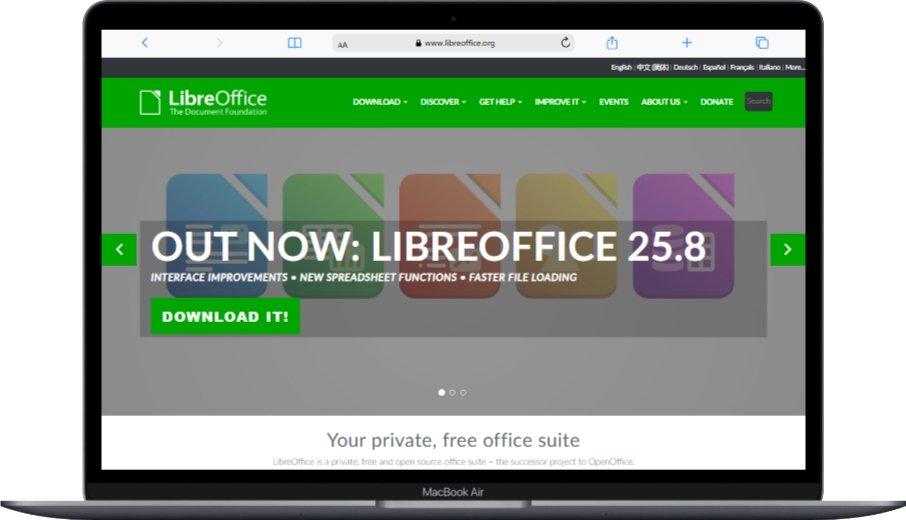
LibreOffice Draw provides comprehensive PDF editing within the free office suite. This application opens PDF files for full text and image editing capabilities. Users can modify layouts, add graphics, and export to various formats seamlessly.
The software excels at handling text-based PDFs with extensive formatting options. Drawing tools enable graphic creation and modification directly within documents. Integration with other LibreOffice applications streamlines complex document workflows effectively.
Key editing features:
- Complete text editing and formatting capabilities
- Advanced drawing and graphic design tools
- Page layout modification and design options
- Export to multiple document formats
- Integration with LibreOffice office suite applications
- Professional typography and font management
Pros:
- Full-featured editing comparable to paid software
- No licensing costs or subscription requirements
- Excellent text editing and formatting capabilities
- Good integration with complete office workflows
Cons:
- Large installation size due to complete office suite
- Can be slow with very large or complex PDF files
- Learning curve for users wanting simple edits only
- Interface designed for creation rather than quick editing
2. PDFtk Free
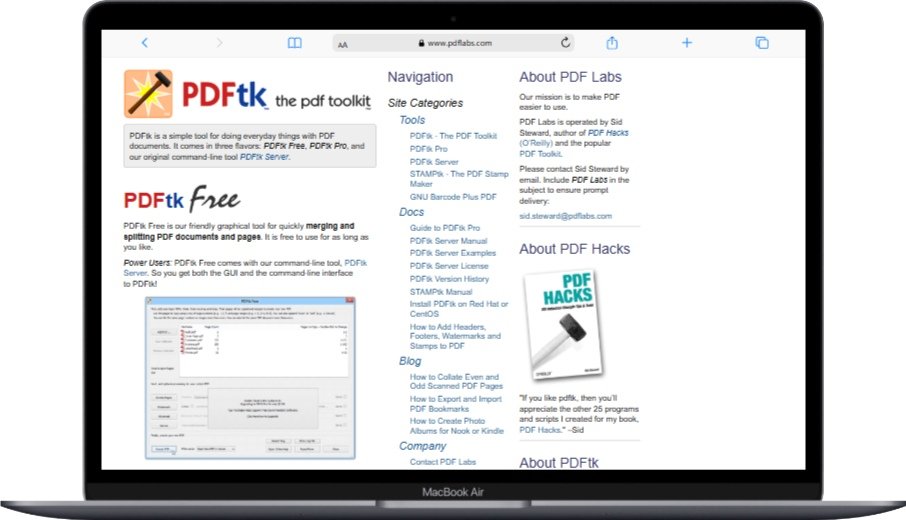
PDFtk Free focuses on PDF manipulation and merging operations. This command-line tool excels at splitting, merging, and rotating PDF documents. Advanced users appreciate the powerful batch processing capabilities for multiple files.
The application handles password-protected documents and security settings effectively. Metadata editing allows updating document properties and information fields. Form field manipulation enables creating and modifying interactive elements within documents.
Specialized capabilities:
- Advanced PDF splitting and merging operations
- Batch processing for multiple document handling
- Password and security management features
- Metadata and document property editing
- Form field creation and manipulation tools
- Command-line automation for repetitive tasks
Pros:
- Powerful batch processing and automation capabilities
- Excellent for PDF manipulation and organization tasks
- Handles security and password features effectively
- Free with no usage limitations or restrictions
Cons:
- Command-line interface intimidates casual users
- Limited text and content editing capabilities
- Requires technical knowledge for advanced features
- No graphical interface for visual editing tasks
3. PDF Arranger
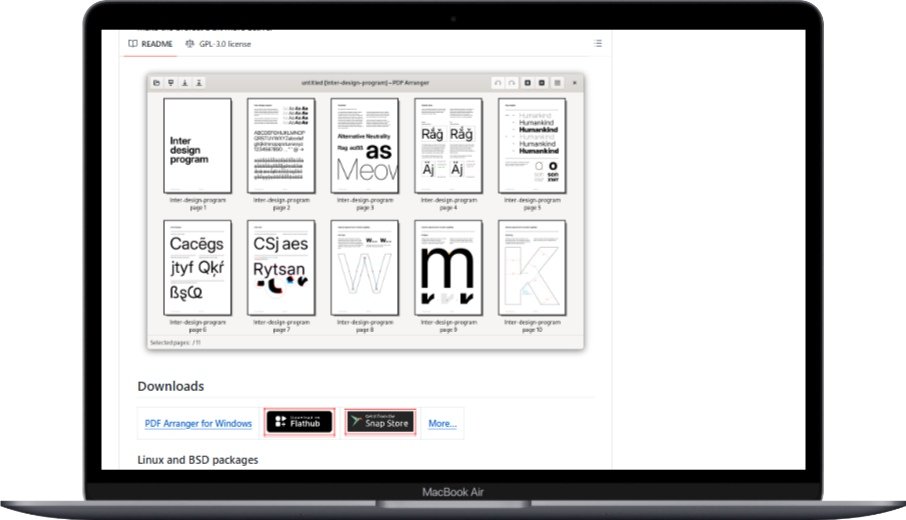
PDF Arranger specializes in visual page management and document organization. This open-source tool provides drag-and-drop page rearrangement within an intuitive interface. Users can easily split, merge, and rotate pages across multiple documents.
The application includes cropping tools for removing unwanted page sections. Thumbnail previews make page identification and organization straightforward. Export options maintain document quality while reducing file sizes when needed.
Page management features:
- Visual drag-and-drop page rearrangement interface
- Document splitting and merging with preview thumbnails
- Page rotation and cropping capabilities
- Multiple document handling in single workspace
- Export options with quality and compression settings
- Bookmark preservation during page operations
Pros:
- Intuitive visual interface for page management
- Excellent for document reorganization tasks
- Lightweight and fast performance
- Open-source with active community development
Cons:
- Limited text and content editing capabilities
- Basic functionality compared to comprehensive editors
- Minimal annotation and markup tools available
- No form creation or interactive element support
4. Inkscape PDF Editing
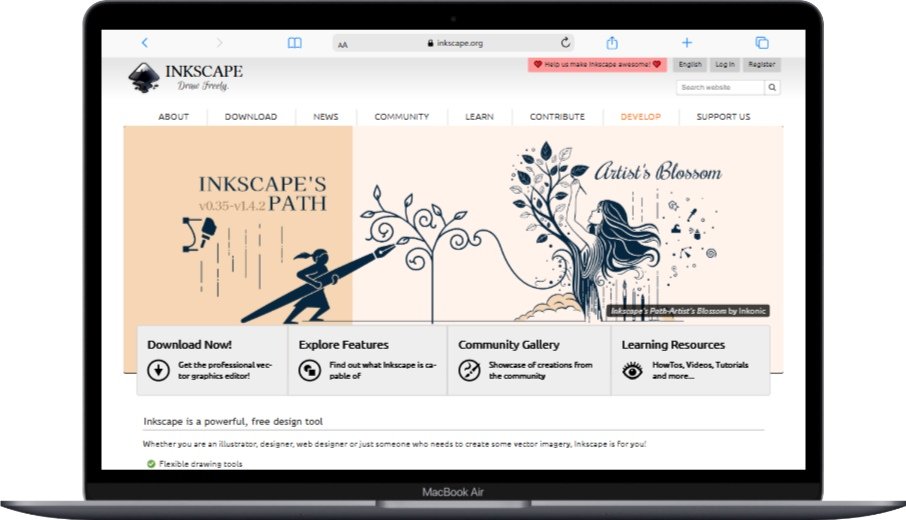
Inkscape opens PDF files for vector-based editing and graphic design. This professional graphics application handles PDF text and image editing effectively. Advanced drawing tools enable comprehensive graphic modification and creation within documents.
The software provides precise control over typography and layout elements. Layer management helps organize complex documents with multiple elements. Export capabilities include various formats for different distribution needs.
Vector editing advantages:
- Professional vector graphics editing capabilities
- Precise typography and text formatting control
- Advanced drawing and illustration tools
- Layer management for complex document organization
- High-quality export options and format support
- Professional design features for creative workflows
Pros:
- Professional-grade vector editing capabilities
- Excellent for graphic-heavy PDF modifications
- Precise control over design elements and layouts
- Completely free with no feature limitations
Cons:
- Steep learning curve for casual editing tasks
- Primarily designed for graphic design rather than document editing
- Can be overwhelming for simple text modifications
- Large file size and resource requirements
5. PDF Editor by PDF24
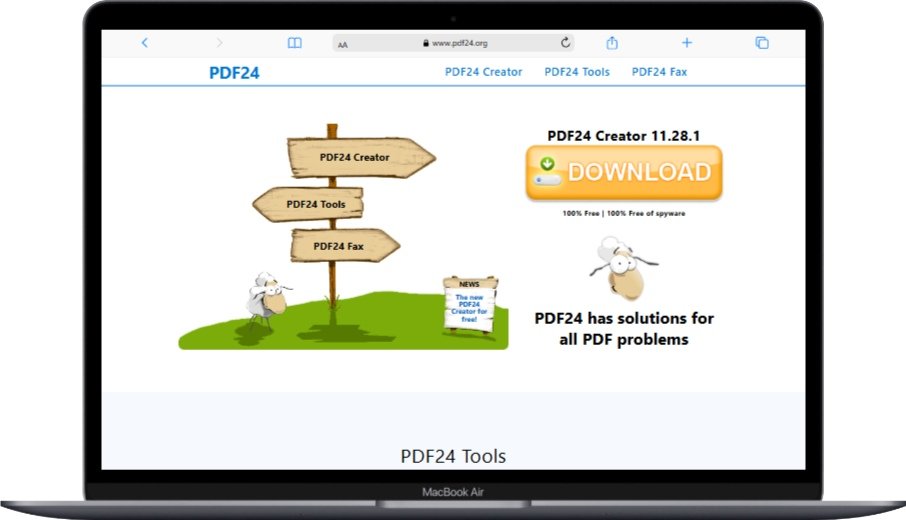
PDF24 Creator includes comprehensive PDF editing tools within the free desktop application. This software provides text editing, image insertion, and page management capabilities. Form creation tools enable interactive document development for business workflows.
The application includes security features for password protection and access control. Batch processing handles multiple documents efficiently for productivity improvements. Integration with online PDF24 tools extends functionality through cloud services. For additional PDF manipulation options, explore best PDF converter, merger and reduce tools for comprehensive document management.
Comprehensive editing features:
- Text editing with formatting and font options
- Image insertion, editing, and optimization tools
- Interactive form creation and management capabilities
- Security and password protection features
- Batch processing for multiple document operations
- Integration with online PDF24 cloud services
Pros:
- User-friendly interface suitable for beginners
- Comprehensive editing features in free version
- Good balance between functionality and simplicity
- Regular updates and active development support
Cons:
- Some advanced features require internet connectivity
- Occasional performance issues with very large files
- Limited compared to professional paid alternatives
- Advertising and promotional content in interface
6. PDFescape Online Editor
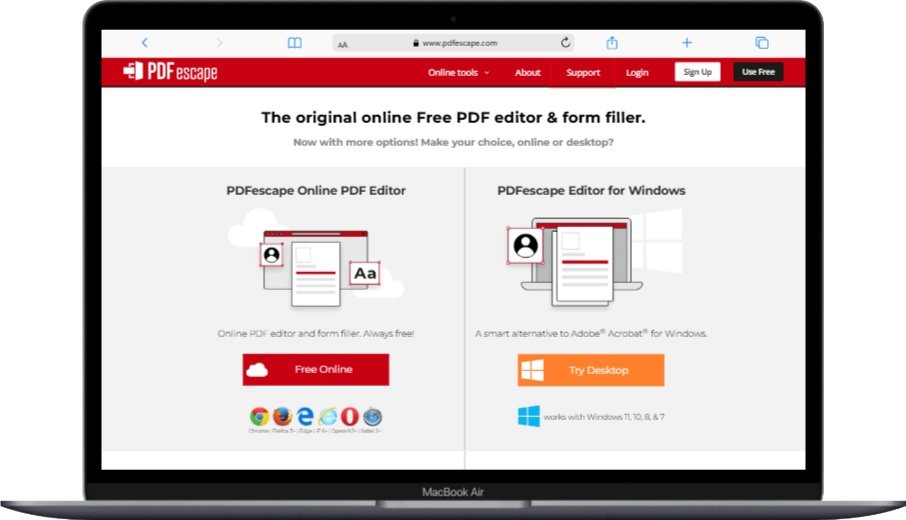
PDFescape provides comprehensive online PDF editing without software installation. This web-based editor handles text modification, image insertion, and form creation effectively. The free version supports documents up to 100 pages and 10MB file size.
The interface resembles desktop applications with familiar editing tools and menus. Annotation tools include highlighting, comments, and drawing capabilities for document markup. Form creation enables interactive elements like text fields and checkboxes for professional documents.
Online editing capabilities:
- Text editing and formatting within existing documents
- Image insertion and basic graphic editing tools
- Form field creation with various input types
- Annotation and markup tools for collaboration
- Page addition, deletion, and rearrangement options
- Document security and password protection features
Pros:
- No software installation required for immediate use
- User-friendly interface similar to desktop applications
- Good feature set for online editing requirements
- Works on any device with internet browser access
Cons:
- File size and page limitations in the free version
- Requires internet connectivity for all operations
- Upload security concerns for sensitive documents
- Performance depends on the internet connection speed
7. Sejda PDF Editor
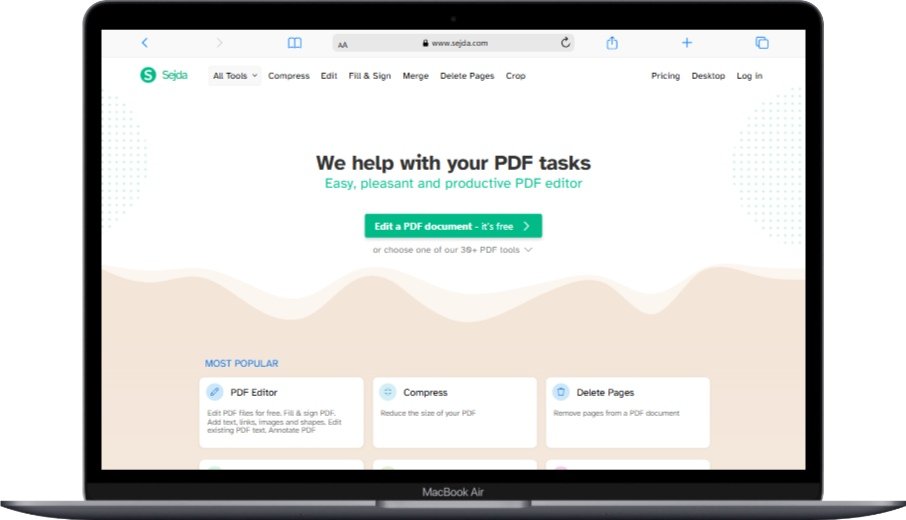
Sejda PDF Editor offers extensive online editing tools with generous free usage limits. Users can edit up to 3 documents per hour with files up to 50MB each. The platform provides professional-grade editing capabilities through web browsers.
The editor includes OCR technology for scanned document text recognition. White-out tools remove unwanted content cleanly without trace marks. Advanced features include digital signatures and document splitting for comprehensive workflows.
Advanced online features:
- OCR text recognition for scanned documents
- White-out tools for clean content removal
- Digital signature creation and management
- Advanced text formatting and typography options
- Document splitting and merging capabilities
- Batch processing for multiple file operations
Pros:
- Professional features typically found in paid software
- OCR capabilities for scanned document editing
- Generous free usage limits for most users
- High-quality editing results and output
Cons:
- Hourly usage limitations for free accounts
- Requires account registration for full features
- Large file uploads can be slow depending on connection
- Some advanced features require paid subscription
8. SmallPDF Online Editor
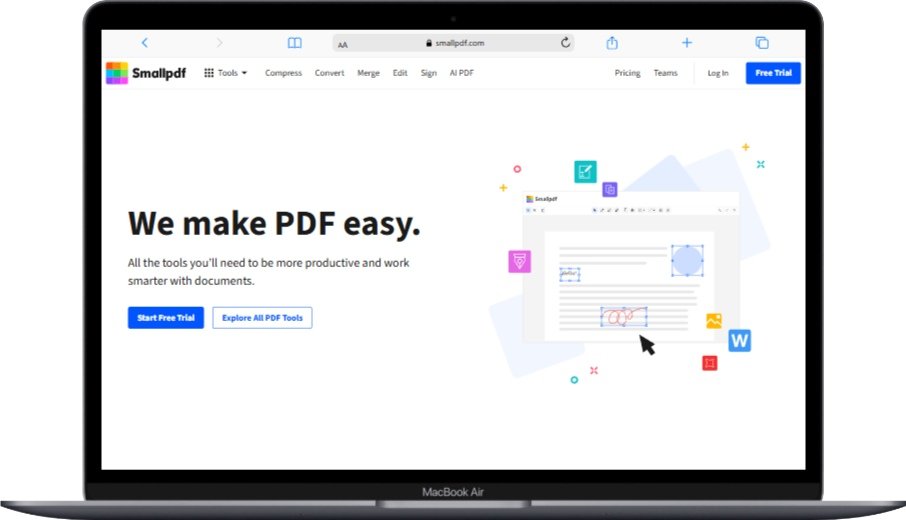
SmallPDF focuses on simplicity and ease of use for basic PDF editing tasks. The platform provides essential editing tools without overwhelming interfaces or complex features. Text editing, image insertion, and annotation tools cover most common editing needs.
The service includes comprehensive PDF conversion and optimization tools. Document compression reduces file sizes while maintaining quality for sharing and storage. Integration with cloud storage services streamlines document workflows across devices.
Streamlined editing tools:
- Simple text editing and basic formatting options
- Image insertion and positioning capabilities
- Essential annotation tools for document markup
- Document conversion to and from various formats
- File compression and optimization features
- Cloud storage integration for workflow efficiency
Pros:
- Very user-friendly interface ideal for beginners
- Fast processing and reliable performance
- Good integration with cloud storage services
- Clean, professional results without complexity
Cons:
- Limited advanced editing capabilities
- Free version has usage restrictions and limitations
- Watermarks on documents in free tier
- Requires subscription for unlimited usage
9. ILovePDF Editor
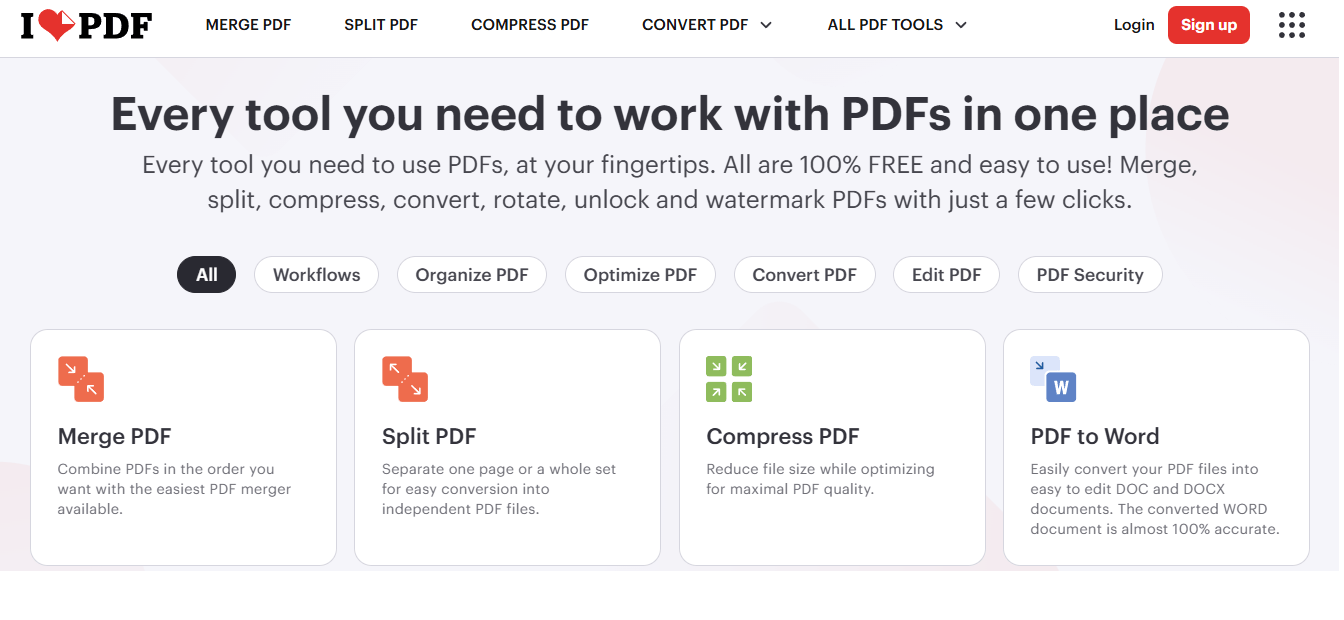
ILovePDF provides basic online editing tools as part of a comprehensive PDF toolkit. The editor handles simple text modifications and image insertions effectively. The platform excels at PDF manipulation tasks like merging, splitting, and converting documents.
The service offers batch processing capabilities for multiple documents simultaneously. Compression tools optimize file sizes while maintaining document quality. Password protection and security features protect sensitive document content during online processing.
Toolkit integration benefits:
- Part of comprehensive PDF manipulation toolkit
- Batch processing for multiple document operations
- Document compression and optimization features
- Security and password protection capabilities
- Multiple format conversion and export options
- Integration with various cloud storage services
Pros:
- Part of comprehensive PDF toolkit with many functions
- Good for combining editing with other PDF operations
- Batch processing saves time with multiple documents
- Free tier provides decent functionality for basic needs
Cons:
- Limited editing features compared to specialized editors
- Usage limitations and file size restrictions in free version
- Requires registration for full feature access
- Advertising and upgrade prompts throughout interface
Advanced Features in Free PDF Editors
OCR Technology for Scanned Documents
Optical Character Recognition converts scanned images into editable text within PDF documents. This technology enables editing of documents created from paper originals or image files. Modern OCR engines achieve high accuracy rates with clear, well-scanned documents.
OCR capabilities and benefits:
- Convert scanned images to searchable, editable text
- Multiple language recognition support for international documents
- Preserve original formatting and layout during conversion
- Enable full-text search within previously unsearchable documents
- Allow comprehensive editing of paper-based document conversions
- Improve accessibility for screen readers and assistive technologies
Quality OCR results depend on original scan clarity and document condition. Clean, high-resolution scans produce better text recognition accuracy. Some editors require manual correction after OCR processing for perfect results.
Form Creation and Interactive Elements
Modern PDF editors create interactive forms with various field types for data collection. Form fields include text boxes, checkboxes, radio buttons, and dropdown menus. Professional forms streamline business processes and improve data collection efficiency.
Form field types and applications:
- Text fields for name, address, and general information input
- Checkbox groups for multiple selection options
- Radio buttons for single-choice selections from groups
- Dropdown menus for predefined option lists
- Digital signature fields for document authentication
- Calculation fields for automatic mathematical operations
Interactive forms work across different PDF viewers and platforms. Proper form design improves user experience and data accuracy. Form validation prevents incorrect data entry and ensures completeness.
Digital Signatures and Security Features
Digital signatures provide legal authentication for electronic documents. PDF editors include signature creation tools and certificate management systems. Security features protect documents against unauthorized modifications and access.
Security and authentication options:
- Digital signature creation with certificate management
- Password protection for document access control
- Encryption settings for sensitive content protection
- Permission controls for printing and editing restrictions
- Watermark addition for document identification and branding
- Redaction tools for permanently removing sensitive information
Security settings vary between editors with some offering enterprise-grade protection. Proper security implementation protects document integrity and confidentiality. Legal validity of digital signatures depends on jurisdiction and certificate authority recognition.
Batch Processing and Automation
Batch processing handles multiple documents simultaneously for improved productivity. Automation features apply consistent changes across document collections efficiently. Command-line tools enable integration with existing business workflows and systems.
Automation capabilities:
- Apply consistent formatting changes across multiple documents
- Merge multiple files into single documents automatically
- Convert entire document collections between formats efficiently
- Add watermarks or headers to document batches consistently
- Optimize file sizes across large document libraries
- Extract specific pages from multiple documents simultaneously
Batch operations save significant time when handling large document collections. Proper planning prevents errors that affect multiple documents simultaneously. Testing batch operations on sample documents ensures desired results before processing entire collections.
Choosing Between Online and Offline Editors
Security and Privacy Considerations
Offline editors provide better security for sensitive documents by avoiding internet uploads. Online editors process documents on remote servers, creating potential privacy risks. Consider document sensitivity when choosing between online and offline editing solutions.
Security comparison factors:
- Offline editors maintain complete document control locally
- Online editors require uploading documents to external servers
- Sensitive business documents benefit from offline processing
- Personal documents with low security needs work well online
- Internet connectivity affects online editor security and availability
- Local processing eliminates data breach risks from external servers
Document classification helps determine appropriate editing approach. Confidential business information requires offline processing for security compliance. Public documents and general correspondence work safely with online editors.
Feature Availability and Limitations
Offline editors typically provide more comprehensive feature sets without usage restrictions. Online editors may limit file sizes, processing time, or monthly usage quotas. Advanced features often require paid subscriptions in online platforms.
Feature comparison considerations:
- Offline editors offer unlimited usage without quotas or restrictions
- Online editors may limit file sizes and processing capabilities
- Advanced features like OCR may be restricted in free online versions
- Offline tools work without internet connectivity requirements
- Online platforms provide automatic updates and new features
- Collaboration features work better in online environments
Evaluate your typical editing requirements against available features in each platform type. Heavy users benefit from offline tools with unlimited processing capabilities. Occasional users find online editors sufficient for basic editing needs.
Performance and System Requirements
Offline editors require local system resources and may slow older computers. Online editors shift processing to remote servers but depend on internet connection speed. Large documents perform differently across online and offline editing environments.
Performance considerations:
- Offline editors use local CPU and memory resources during processing
- Online editors depend on internet upload and download speeds
- Large files process faster locally on modern computers
- Slow internet connections affect online editor performance significantly
- Offline tools work reliably without connectivity interruptions
- Online platforms handle processing on powerful server infrastructure
System specifications influence offline editor performance significantly. Modern computers with adequate memory handle large documents efficiently. Slower systems may benefit from online processing on powerful remote servers. When working with multiple PDFs, you might also need to combine PDF files online for better document organization.
Essential PDF Editing Techniques
Text Editing Best Practices
Successful text editing requires understanding PDF structure and font limitations. Text-based PDFs allow comprehensive editing while scanned documents need OCR conversion first. Font availability affects text appearance and formatting consistency throughout documents.
Text editing guidelines:
- Verify font availability before making extensive text changes
- Use OCR preprocessing for scanned documents before text editing
- Maintain consistent formatting throughout document sections
- Check text alignment and spacing after making modifications
- Preserve original document structure and layout integrity
- Test edited documents across different PDF viewers for compatibility
Font substitution may occur when original fonts are unavailable during editing. This can change document appearance and layout significantly. Preview edited documents in multiple viewers to ensure consistent display across platforms.
Image and Graphics Management
Image editing within PDFs requires attention to resolution and file format compatibility. High-resolution images maintain quality but increase document file sizes significantly. Compression settings balance quality against file size requirements for sharing and storage.
Image editing considerations:
- Maintain appropriate image resolution for intended document use
- Consider file size impact when adding high-resolution images
- Use appropriate image formats for different content types
- Preserve aspect ratios to prevent image distortion during resizing
- Optimize images for print versus digital distribution requirements
- Position images carefully to maintain document layout and flow
Image placement affects document layout and text flow around graphics. Professional document design considers visual balance and readability. Test document appearance across different devices and screen sizes for optimal presentation.
Page Layout and Design Principles
Effective page layout enhances document readability and professional appearance. Consistent margins, spacing, and alignment create polished, professional documents. White space usage improves readability and visual appeal throughout documents.
Layout design guidelines:
- Maintain consistent margins and spacing throughout documents
- Use appropriate font sizes and styles for different content types
- Balance text and white space for optimal readability
- Align elements consistently for professional appearance
- Consider print versus digital layout requirements during design
- Test layouts across different page sizes and orientations
Professional layout principles apply regardless of document complexity or purpose. Simple, consistent design often produces better results than overly complex layouts. User testing reveals layout effectiveness and readability issues before final distribution.
Troubleshooting Common PDF Editing Issues
Font and Formatting Problems
Font issues occur frequently during PDF editing when original fonts are unavailable. Font substitution can change document appearance and layout significantly. Installing missing fonts or using font embedding prevents formatting problems during editing.
Font troubleshooting strategies:
- Install missing fonts identified in error messages during editing
- Use font embedding options when available during document creation
- Choose common system fonts for maximum compatibility across devices
- Preview documents on different systems to identify font substitution issues
- Consider PDF/A format for long-term font preservation and compatibility
- Use font matching tools to find suitable substitutes for unavailable fonts
Font licensing restrictions may prevent embedding certain commercial fonts. Free alternatives often provide acceptable substitutes for proprietary fonts. Document creators should consider font availability when designing PDFs for widespread distribution.
Image Quality and Resolution Issues
Image degradation occurs during editing operations that compress or resize graphics. Original image resolution limits quality improvements during editing processes. Maintaining high-quality source images prevents quality loss during document modifications.
Image quality preservation:
- Start with high-resolution source images for best editing results
- Avoid multiple compression cycles that degrade image quality progressively
- Use lossless image formats when possible during editing operations
- Match image resolution to intended document use and distribution methods
- Consider file size impact when preserving maximum image quality
- Test image appearance across different viewing devices and print outputs
Resolution requirements vary between print and digital document distribution. Print documents need higher resolution than screen viewing for acceptable quality. Balancing quality against file size requirements optimizes documents for intended use cases.
Compatibility and Version Problems
PDF version compatibility affects document display and functionality across different viewers. Newer PDF features may not work in older viewer applications. Choosing appropriate PDF versions ensures maximum compatibility with target audiences and systems.
Compatibility troubleshooting approaches:
- Use PDF/A standards for maximum long-term compatibility and preservation
- Test edited documents in multiple PDF viewers and versions
- Choose conservative PDF versions for maximum viewer compatibility
- Avoid advanced features not supported in older viewer applications
- Consider target audience capabilities when selecting PDF features and versions
- Document PDF version requirements for distribution and archival purposes
Legacy system compatibility may require older PDF versions without modern features. Advanced security and interactive elements may not function in older viewers. Balancing functionality against compatibility ensures documents work properly for intended audiences.
File Size and Performance Optimization
Large PDF files cause performance problems during editing and distribution. Image optimization and content compression reduce file sizes without significant quality loss. Efficient editing practices prevent unnecessary file size increases during modification processes.
File size optimization techniques:
- Compress images appropriately for intended document use and distribution
- Remove unnecessary elements like hidden layers and unused resources
- Use efficient compression settings during export and save operations
- Split large documents into smaller sections for better performance
- Optimize fonts and text rendering for smaller file sizes
- Remove or reduce redundant content that increases file size unnecessarily
Performance optimization benefits both editing workflows and end-user experience. Smaller files load faster and consume less storage space across systems. Regular optimization maintains document efficiency as content grows and changes over time.
Integration with Other Tools and Workflows
Office Suite Integration
PDF editors often integrate with word processors and presentation software for seamless workflows. Document conversion capabilities enable moving content between PDF and editable formats efficiently. Collaboration features support team-based document development and review processes.
Integration opportunities:
- Convert PDFs to Word documents for comprehensive editing capabilities
- Import PDF content into presentation software for slide development
- Export edited PDFs to various formats for different distribution needs
- Integrate with cloud storage for team access and collaboration features
- Connect with email systems for direct document distribution and sharing
- Link with project management tools for document workflow tracking
Workflow integration reduces manual file handling and improves productivity significantly. Automated processes prevent errors and ensure consistent document handling across projects. Team collaboration features support distributed work environments and remote access requirements.
Cloud Storage and Synchronization
Cloud integration enables document access across multiple devices and platforms. Synchronization features keep document versions current across team members and systems. Backup capabilities protect against document loss and enable version recovery when needed.
Cloud integration benefits:
- Access documents from any device with internet connectivity
- Automatic backup and version control for document protection
- Team sharing and collaboration capabilities for distributed workflows
- Synchronization across multiple editing platforms and applications
- Integration with existing business cloud infrastructure and systems
- Mobile access for document review and basic editing on tablets and phones
Security considerations apply when storing sensitive documents in cloud systems. Encryption and access controls protect confidential information during storage and transmission. Compliance requirements may restrict cloud usage for certain document types and industries.
Workflow Automation and Scripting
Advanced users can automate repetitive PDF editing tasks through scripting and batch processing. Command-line tools integrate with existing business systems and workflows efficiently. Automation reduces manual work and ensures consistent document processing across large collections.
Automation possibilities:
- Batch process multiple documents with consistent formatting changes
- Integrate PDF editing into existing business workflow systems
- Automate document generation from templates and data sources
- Schedule regular document processing and optimization operations
- Create custom workflows for specific business requirements and processes
- Monitor document changes and trigger automated responses when needed
Automation requires technical expertise for implementation and maintenance. Testing ensures automated processes produce desired results consistently. Documentation helps team members understand and maintain automated workflows over time.
Frequently Asked Questions About PDF Editors
Can free PDF editors handle complex document layouts effectively?
Yes, but with limitations depending on the specific editor used. LibreOffice Draw and Inkscape handle complex layouts well for comprehensive editing needs. Simple editors work better for basic text changes rather than complex design modifications and advanced layout requirements.
Are online PDF editors safe for confidential business documents?
No, online editors pose security risks for confidential documents. Sensitive business information should be edited using offline tools to maintain complete control. Online editors upload documents to external servers, creating potential data breach and privacy risks.
Do free PDF editors support digital signatures and security features?
Yes, many free editors include basic security and signature capabilities. PDF24 Creator and LibreOffice Draw support password protection and digital signatures. Advanced security features may require specialized tools or paid software for enterprise-level requirements.
Can PDF editors fix scanned documents with poor text quality?
OCR technology can improve scanned documents but results vary with source quality. High-quality scans produce better OCR results for text editing capabilities. Poor-quality scans may require manual correction after OCR processing for acceptable results and accuracy.
Which free PDF editor works best for form creation and interactive elements?
PDFescape and PDF24 Creator excel at form creation and interactive elements. These tools provide comprehensive form field options including text boxes, checkboxes, and dropdown menus. LibreOffice Draw also supports form creation with good integration capabilities.
Do PDF editors maintain document formatting when making text changes?
Formatting preservation depends on the editor and document structure used. Text-based PDFs generally maintain formatting better than scanned documents during editing. Font availability affects formatting consistency, so preview changes carefully before finalizing modifications.
Can free PDF editors merge multiple documents into single files?
Yes, most PDF editors include document merging and splitting capabilities. PDF Arranger specializes in visual page management and document organization. PDFtk Free provides powerful command-line merging for batch operations and automation needs.
Conclusion
Free PDF editors provide essential document modification capabilities without expensive software licensing costs. LibreOffice Draw offers the most comprehensive editing features for complex document modifications and professional workflows. Online editors like PDFescape work well for basic editing needs without software installation requirements.
Choose between online and offline editors based on security requirements and document sensitivity. Confidential business documents benefit from offline processing to maintain complete security control. Public documents and general correspondence work safely with convenient online editing platforms.
Consider your typical editing requirements when selecting PDF editor software. Casual users benefit from simple tools like SmallPDF for basic text modifications. Professional users need comprehensive tools like LibreOffice Draw for advanced editing and design capabilities.
Performance requirements influence editor selection for different computer systems and workflows. Modern computers handle feature-rich offline editors efficiently for complex document processing. Older systems may benefit from online editors that shift processing to powerful remote server infrastructure.
Security and privacy considerations affect editor choice for sensitive document handling. Offline tools provide maximum security control for confidential information and compliance requirements. Online platforms offer convenience but require careful evaluation of security policies and data handling practices.
The PDF editing landscape continues evolving with new features and improved compatibility across platforms. Free tools provide excellent functionality for most editing needs without subscription costs. Regular software updates ensure continued compatibility with new PDF standards and security requirements over time.
Testing multiple editors helps identify the best tools for your specific workflow requirements and document types. Real-world usage reveals performance characteristics and feature limitations better than specifications alone. Most free editors offer unlimited trial usage for comprehensive evaluation before making final selections.
You May Also Like
 Online Services
22 Best Free Sites to Receive SMS Online for Verification Without a Phone
 Cyber Security
Is Temu Legit or a Scam? The Complete Truth You Need to Know
 Online Services
15 Free Movie Apps for Android: Your Complete Guide to Legal Streaming in 2026
 Cyber Security
Is OffGamers Legit? Complete Review and Analysis of the Digital Game Store
 Online Services
10 Best Tumblr Alternatives For Free To Use
 Online Services
10 Best Websites To Download Free Fonts: A Designer’s Ultimate Resource
 Online Services
20 Best Sites To Download Free Stock Photos For Personal and Commercial Use
 Online Services
7 Best Sites Like Fiverr (Fiverr Alternatives) To Earn Money As A Freelancer
 Online Services