Looking for the best free LAN Speed Test Software to benchmark your network speed performance? Let’s face it, our modern activity depends a lot on the internet connection.
We simply can’t live without it. The LAN speed software is about how fast your connection is. It is about the bandwidth amount you need to get your work done, including how fast you can download and upload content or how fast the data and files transfer in the local network.
Simply put, the software allows you to check your wireless network speed and analyze the networks. If there is something wrong or you are experiencing a lag, then you know where to find the issue or how to deal with it. It is a good thing that there are many free and reliable software to use to test your LAN speed. In some cases, feel free to use more than one software if you find it necessary. So, what is the software to try?
What is LAN Speed Test Software?
LAN speed test software measures how quickly data transfers between your devices on your local network. Unlike internet speed tests that connect to distant websites, LAN tests focus on your own equipment, like routers, switches, and cables.
These tools send data between devices and record the transfer time. Results display your network speed in megabits per second (Mbps) or gigabits per second (Gbps). Some tools also check for latency (delay) and packet loss (missing data), helping identify specific network issues.
LAN speed testing software benefits both home users and businesses. It shows whether your network is performing well or if it needs fixing or upgrading.
Why Test Your LAN Speed?
Testing your LAN bandwidth speed shows how well your network functions. Regular checks can spot issues before they grow and disrupt your daily tasks.
Network speed affects nearly everything online. A slow LAN causes video buffering, gaming lag, and delays in file downloads. These issues can be frustrating and make it hard to work or relax.
LAN speed tests help you:
- Check if your network equipment is working correctly
- Find parts of your network that are slowing things down
- Make sure your network can handle what you need it for
- Fix connection problems between devices
- See if changes to your network settings helped
- Plan for future network upgrades
Without testing, you may not realize why your internet feels slow or if you’re getting the speed you paid for.
How to Choose the Best LAN Speed Test Software
Selecting the right LAN bandwidth testing software depends on your needs and tech comfort level. Many options exist, so knowing what to look for can help you choose the best one for you.
Key Features to Look For
When evaluating LAN speed test software, consider these important features:
- Accuracy: The tool should give you reliable results that match your actual network performance.
- Ease of Use: Look for simple interfaces that show results clearly, especially if you’re not a tech expert.
- Testing Options: Good tools offer different test types, including basic speed tests and more detailed analysis.
- Results Display: The software should show your results in a way that’s easy to understand.
- Compatibility: Make sure the tool works on your computer’s operating system (Windows, Mac, etc.).
- Resource Usage: The software shouldn’t slow down your computer while it’s running tests.
- Additional Features: Some tools offer extra functions like historical data tracking or network troubleshooting.
Compatibility Considerations
Before downloading LAN speed test software, check if it will work with your system:
- Operating System: Make sure the software supports your computer’s OS (Windows, macOS, Linux, etc.).
- Network Type: Verify that the tool can test both wired (Ethernet) and wireless (Wi-Fi) connections if you need both.
- Device Requirements: Check that your computer meets the minimum requirements to run the software.
- Network Protocols: Most tools work with standard network protocols, but it’s good to confirm this.
- Multiple Devices: Consider whether you need to test between different types of devices (computers, phones, tablets, etc.).
Ease of Use vs. Advanced Features
Think about your technical knowledge when choosing a tool:
- For Beginners: Look for tools with simple interfaces and one-click testing that don’t require technical knowledge.
- For Tech-Savvy Users: Consider tools with more detailed information and customizable options.
- For Home Users: Prioritize ease of use and clear results over advanced features.
- For Business Use: You might need tools that can test multiple devices and provide detailed reports.
10 Best Free LAN Speed Test Software
Free LAN speed test software can help you understand your network performance without spending money. These tools range from simple apps for home users to more advanced programs for IT professionals. Here are the 10 best free options available:
1. NetIO-GUI
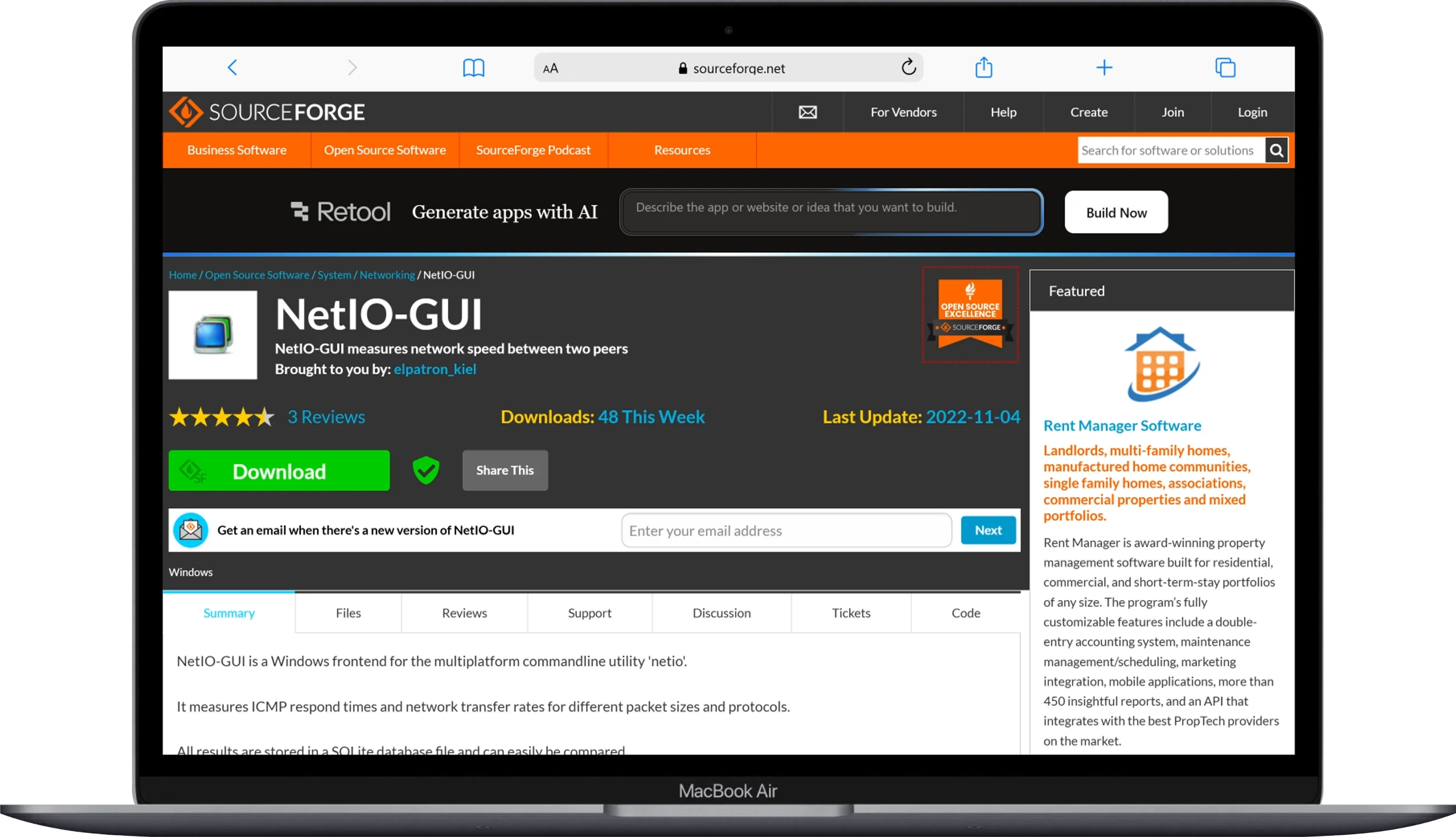
NetIO-GUI is a graphical user interface for the NetIO network benchmarking tool, designed to measure network throughput, bandwidth, and data transfer performance between devices on a local area network (LAN). Distributed through SourceForge, NetIO-GUI simplifies network performance testing by providing a visual interface instead of command-line operations. The tool communicates with a NetIO server running on another computer and measures the speed of TCP and UDP data transfers using different packet sizes. Because of its lightweight design and clear results display, NetIO-GUI is often used by network administrators, IT technicians, and developers to evaluate LAN performance, Ethernet speed, and network stability.
Key Features:
- Graphical interface for the NetIO network benchmarking utility
- Measures TCP and UDP throughput across a LAN
- Tests performance using multiple packet sizes
- Displays results in tables and performance charts
- Lightweight software suitable for quick network diagnostics
- Open-source project available on SourceForge
- Useful for evaluating Ethernet, Wi-Fi, and local network bandwidth
How It Works:
NetIO-GUI operates using a client–server model, a common architecture used in network performance testing tools. One computer runs the NetIO server, while another device runs NetIO-GUI as the client. The client sends and receives data packets of varying sizes across the network using TCP or UDP protocols. The software measures how quickly the packets are transferred and calculates throughput, bandwidth usage, and transfer rates. These results help users understand how their network infrastructure, routers, switches, and network adapters perform under different data loads.
Pros:
- User-friendly graphical interface
- Supports TCP and UDP network testing
- Lightweight and easy to deploy
- Helpful for LAN diagnostics and bandwidth measurement
- Open-source and freely available
Cons:
- Requires a separate NetIO server for testing
- Limited advanced analytics compared to enterprise tools like iPerf
- Interface design is relatively simple
Best For:
Quickly measuring LAN bandwidth and network throughput using a simple graphical tool.
2. iPerf3
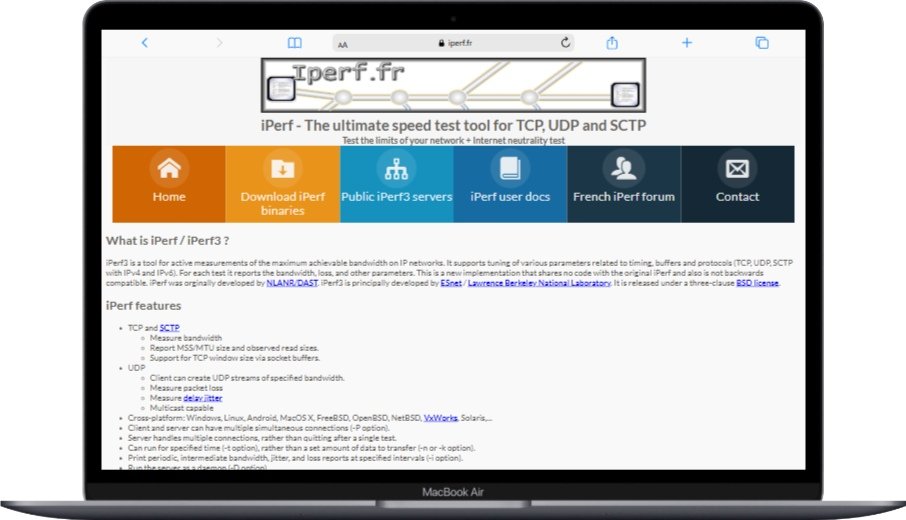
iPerf / iPerf3 is a popular open-source network testing tool used to measure network bandwidth, throughput, and overall network performance between two devices. It is widely used by network administrators, developers, and IT professionals to evaluate the speed and reliability of both local and internet connections. iPerf3 works through a client–server model and supports TCP, UDP, and SCTP protocols, making it a powerful tool for diagnosing network issues and analyzing network capacity.
Key Features:
- Works on multiple systems (Windows, Mac, Linux, Android, iOS)
- Measures speed, delay, and packet loss
- Works with TCP, UDP, and SCTP protocols (both IPv4 and IPv6).
- Can run multiple tests at once
- Reports MSS/MTU size and observed read sizes.
- Customizable test settings
- Disk I/O Testing: Supports disk read and write tests.
- Command-line interface with optional visual add-ons
- Can test in both directions at the same time
How It Works: iPerf3 uses a client-server setup where one device runs as a server and another as a client. The client sends data to the server, and the tool measures various performance metrics during the transfer. This gives accurate measurements of your network’s capabilities.
Pros:
- Very accurate and reliable results
- Many customization options for advanced users
- Regularly updated with improvements
- Works on almost any operating system
- No limits in the free version
- Can test both older and newer network types
Cons:
- Can be difficult for beginners to learn
- Mostly uses command-line (though visual options exist)
- Needs to be installed on at least two devices
- Complex settings might confuse casual users
- No built-in graphs or charts
Best For: IT professionals, network administrators, and tech-savvy users who need precise measurements of network performance and want detailed testing options beyond basic speed tests.
3. NetStress
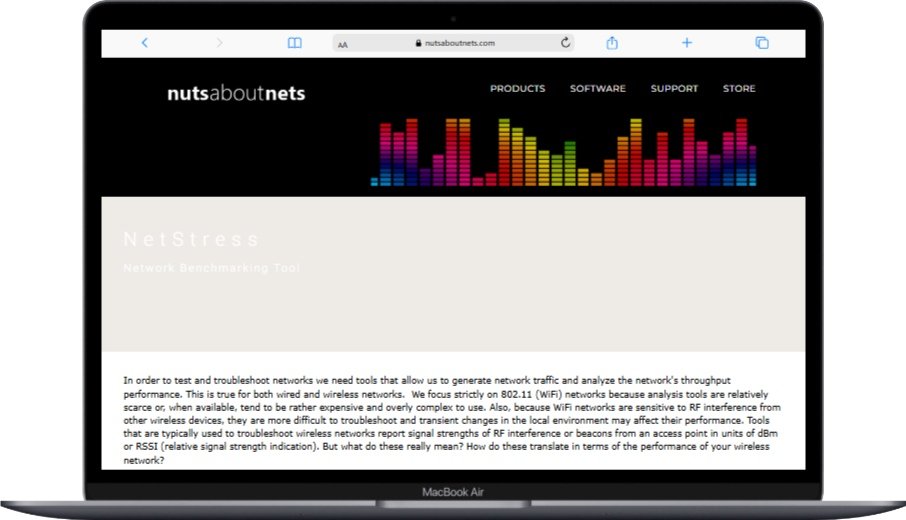
NetStress is a free network testing tool that helps you check the performance and stability of both wired and wireless networks. Developed by Nuts About Nets, this program gives you detailed information about how your network performs under different conditions.
Key Features:
- Tests both TCP and UDP at the same time
- Adjustable Maximum Transmission Unit (MTU) settings for various network conditions
- Real-time bandwidth monitoring
- Multiple display unit options including KBps, Kbps, MBps, and Mbps
- Adjustable test length and data size
- Visual graphs of test results
- Works with multiple network adapters
- Detailed statistics and reports
- Easy to use and lightweight
How It Works: NetStress needs to be installed on each computer you want to test. One computer acts as the server, while others act as clients. The software sends data packets between machines and measures various performance metrics, showing the results in real-time graphs.
Pros:
- Simple graphical interface
- Real-time visual display of network performance
- Can test both wired and wireless connections
- No installation needed (portable version available)
- Detailed statistics and reports
- Free for both personal and business use
Cons:
- Only works on Windows
- Needs to be installed on multiple devices for testing
- Limited advanced configuration options
- Doesn’t save past test results
- Sometimes has issues with certain network adapters
Best For: Network administrators and IT professionals who need to check network performance under stress and see real-time network bandwidth usage across their network.
4. TamoSoft Throughput Test
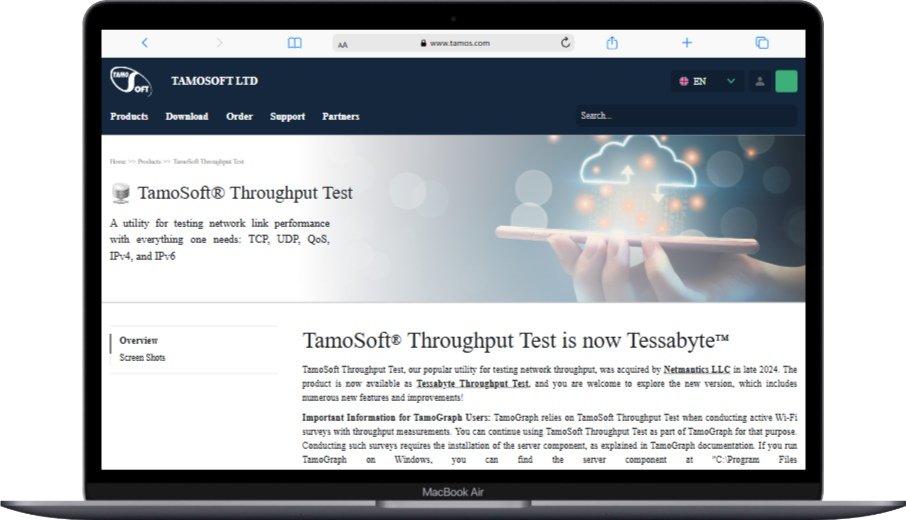
TamoSoft Throughput Test is a free tool that helps you test how well your wired or wireless network performs. This program lets you find the maximum speed of your network by sending continuous data streams between devices.
Key Features:
- Test across a wide range of popular protocols and network medium types
- Supports LAN, Wi-Fi, IPv4, IPv6, TCP, and UDP Protocol
- Real-time graphs show test results
- Customizable test settings
- Works with multiple network adapters
- Support for multiple clients connecting to one server
- Detailed statistics and reports
- Compatible with Windows
- Simple, straightforward interface
- Linux support (Ubuntu, Debian, Fedora, and Red Hat)
- Jitter analysis
How It Works: TamoSoft Throughput Test needs to be installed on two computers on the same network. One computer acts as the server, and the other as the client. The client sends data streams to the server, and the tool measures the actual network speed, displaying the results in real-time graphs.
Pros:
- Easy to use with minimal setup
- Real-time visual representation of network performance
- Supports both TCP and UDP testing
- Provides detailed statistics and reports
- Free for personal and business use
- Doesn’t use much computer power
Cons:
- Only works on Windows
- Needs to be installed on two computers
- Limited advanced features compared to professional tools
- Doesn’t save past test results
- Basic reporting capabilities
Best For: Small business owners and home users who want a simple tool to measure their network’s actual speed and see performance in real-time graphs.
5. NetSpot
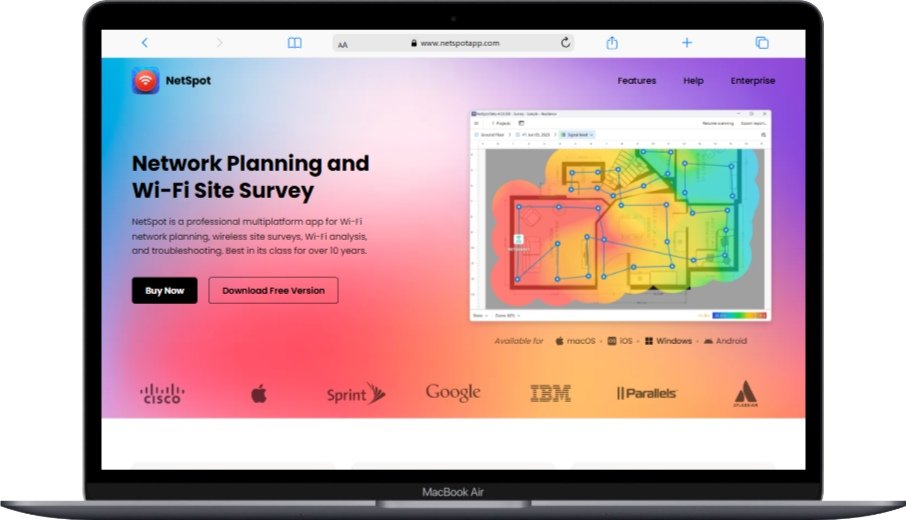
NetSpot is a complete wireless network analysis tool that includes speed testing features. While it has both free and paid versions, the free edition offers enough functionality for basic network analysis and speed testing.
Key Features:
- Discovers and analyzes wireless networks
- Wi-Fi speed testing
- Visual display of signal strength
- Detects channel interference
- Shows access point coverage
- Works on Windows and Mac
- User-friendly interface
- Discover WiFi networks around you with detailed information including SSID, BSSID, signal strength, frequency bands, and more
- Export gathered data to CSV format
- Native WiFi site survey app for Mac, Windows, Android, and iOS
- Merge snapshots of different scanned areas to create comprehensive APoS surveys
- Place doors, windows, and choose WiFi AP types and models
How It Works: NetSpot analyzes wireless networks by scanning for all nearby Wi-Fi networks and their characteristics. For speed testing, it measures the actual data transfer rate between your device and the wireless access point, giving you insights into real-world wireless performance.
Pros:
- Great visualization of wireless network coverage
- Easy to use with intuitive interface
- Helps find the best Wi-Fi channel placement
- Identifies sources of wireless interference
- Available for both Windows and Mac
- No technical knowledge needed for basic use
Cons:
- Limited speed testing features in free version
- Mainly focused on wireless networks
- Advanced features require payment
- No command-line interface for automation
- Limited customization options
Best For: Home users and small business owners who mostly use wireless networks and need to optimize Wi-Fi performance, find dead zones, and measure actual wireless speeds.
6. LANBench
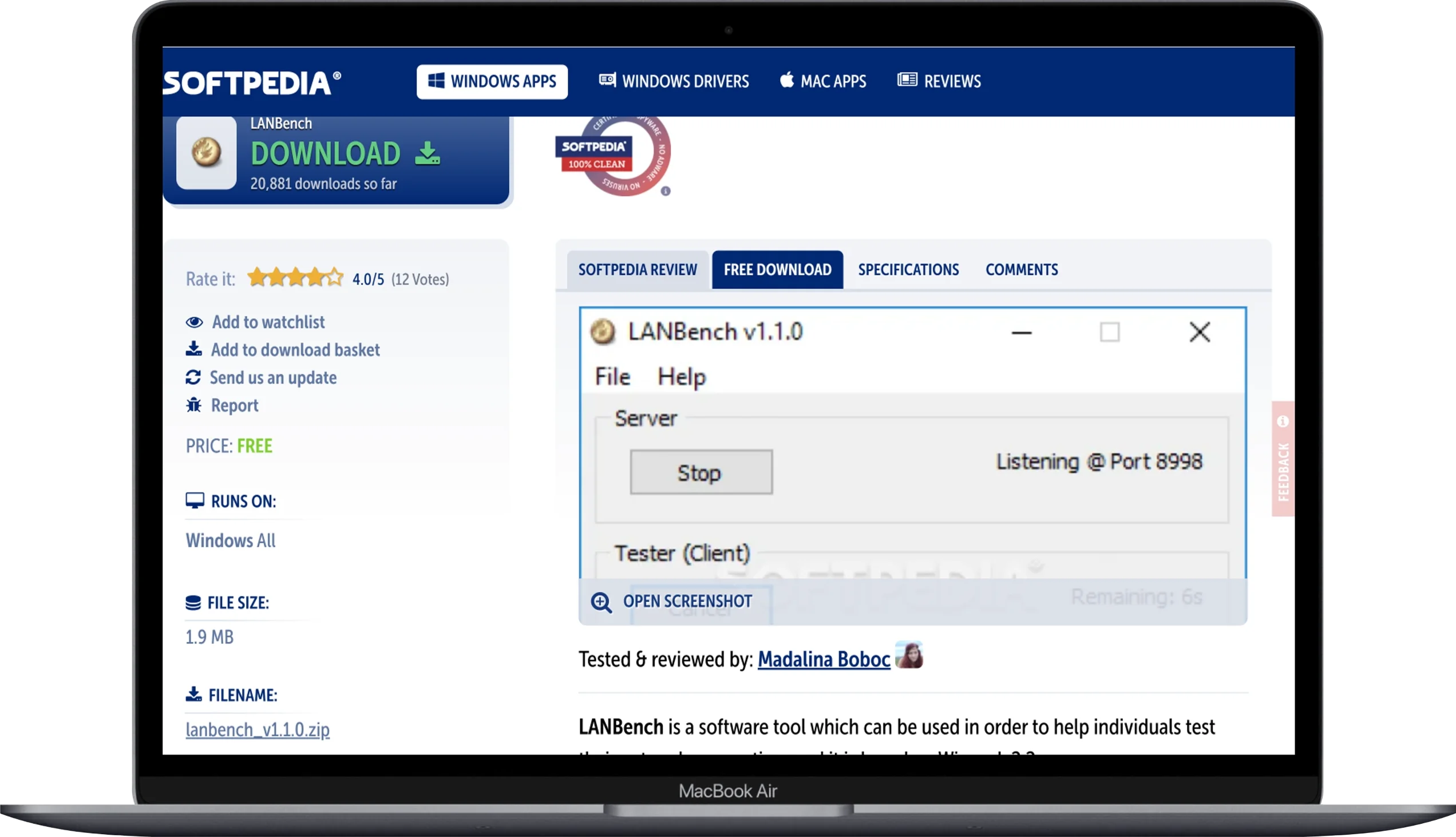
LANBench is a lightweight network benchmarking tool used to measure the performance of a local area network (LAN). It allows users to test network speed, bandwidth, and stability between two computers connected to the same network. By sending data packets between a client and a server, LANBench helps identify network bottlenecks and evaluate connection quality. Its simple and portable design makes it a convenient option for quick LAN performance testing without complicated setup.
Key Features:
- Real-time LAN speed and bandwidth testing
- Client–server architecture for accurate measurements
- Adjustable packet size and buffer settings
- Portable tool with no installation required
- Simple and easy-to-use interface
How It Works: LANBench works by running a server on one computer and a client on another device within the same network. The client sends data packets to the server, and the software measures the transfer speed, packet loss, and latency during the process. These results help users evaluate how efficiently data moves across their local network.
Pros:
- Lightweight and easy to run
- No installation required
- Provides real-time network performance data
- Useful for troubleshooting LAN speed issues
Cons:
- Limited advanced features
- Only designed for local network testing
- Basic user interface
Best For: Quickly testing LAN speed and identifying network performance issues.
7. Totusoft LAN Speed Test
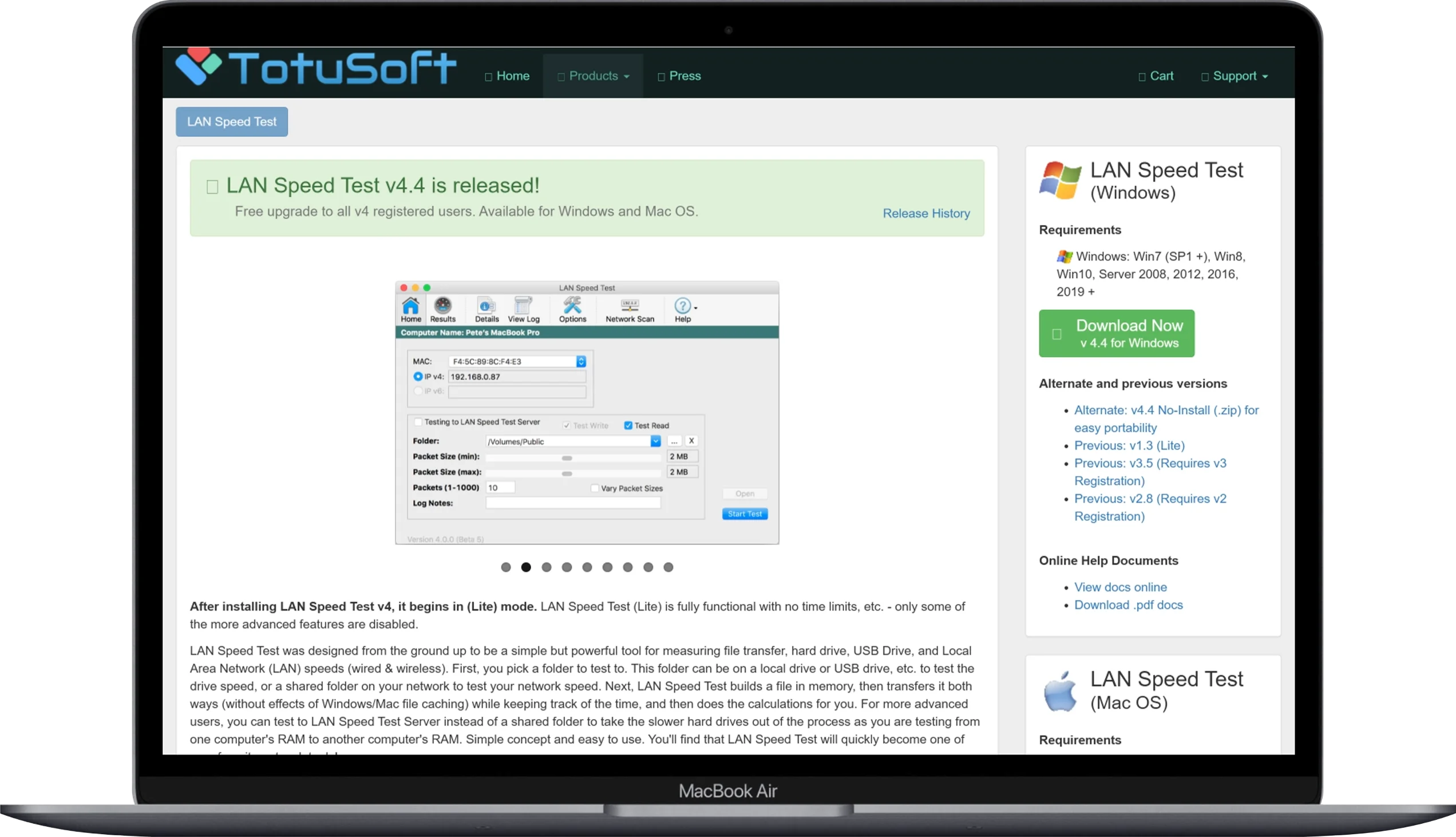
Totusoft LAN Speed Test is a trusted network benchmarking tool developed by Totusoft to measure file transfer speed and overall network performance. The software is designed to provide practical speed testing by transferring data between a computer and a selected folder, which can be a local drive, USB storage, or a shared network location. Because it measures real file transfers instead of simulated traffic, the results often reflect real-world performance more accurately. LAN Speed Test is widely used by IT technicians, network administrators, and home users who want a simple way to check LAN and storage performance.
Key Features:
- Measures LAN speed by testing transfers to and from shared network folders
- Can also test local storage devices such as hard drives and USB drives
- Compatible with LAN Speed Test Server for more accurate RAM-to-RAM testing
- Portable application that can run without installation
- Very fast testing process (many tests complete in under one minute)
- Adjustable packet sizes and chunk sizes for advanced testing
- Supports detailed result views including average, maximum, and minimum throughput
- Ability to log results to CSV files for analysis or database import
- Network scan feature to discover other devices on the network
- Supports automated testing intervals from seconds to hours
- Works on Windows (7 or later) and macOS (10.7.5 or later)
How It Works: LAN Speed Test works by creating a temporary file in memory and transferring it to the selected destination folder. The program measures how long it takes to write and read the data, then calculates the transfer speed. Because the test file is created in memory and avoids operating system caching, the results are designed to provide a more accurate measurement of actual network or storage performance.
Pros:
- Easy to use with a clear interface
- Real file transfer testing for practical results
- Portable and lightweight
- Supports both LAN and storage performance testing
Cons:
- Advanced features require a paid license
- Focused mainly on LAN and storage testing
- Not as detailed as enterprise-level network analyzers
Best For: Testing real-world LAN file transfer speed and evaluating shared network or storage performance.
8. Network Speed Test (by Microsoft)
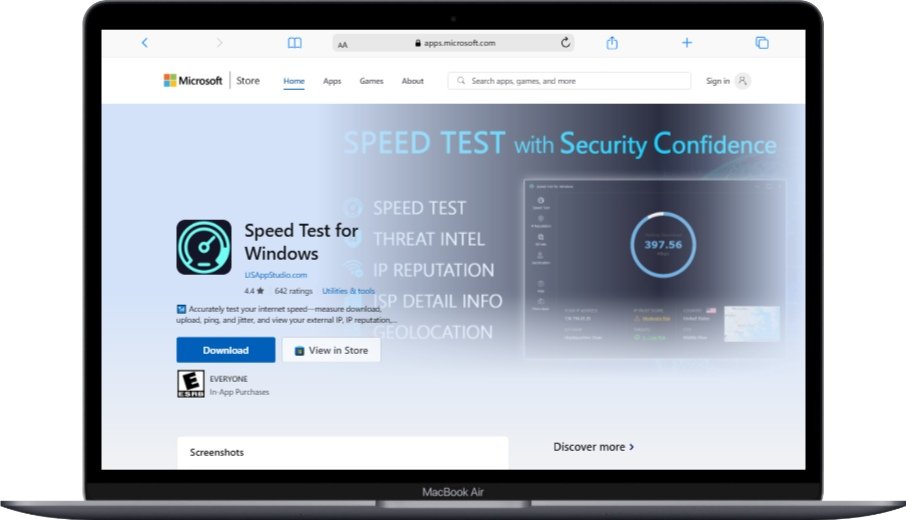
Network Speed Test is a free app developed by Microsoft for Windows devices. Available through the Microsoft Store, this tool provides a simple way to test your network speed and diagnose connectivity issues.
Key Features:
- Simple one-click speed testing
- Measures download and upload speeds
- Network latency assessment
- Saves past test results
- Clean, modern interface
- Works with Windows 10 and 11
- No installation required (Microsoft Store app)
How It Works: Network Speed Test connects to Microsoft’s servers to measure your internet connection speed. While mainly designed for internet speed testing, it can also provide insights into your local network performance when testing between devices on the same network.
Pros:
- Extremely easy to use with one-click testing
- Clean, modern interface
- Made by Microsoft for Windows integration
- Keeps track of your test history
- No installation needed (Microsoft Store app)
- Free for all Windows users
Cons:
- Mainly focused on internet speed testing
- Limited LAN testing capabilities
- Basic functionality with few customization options
- Only works on Windows 10 and 11
- Requires access to Microsoft Store
- No advanced network diagnostics
Best For: Windows users who want a simple, Microsoft-made tool to test their network speed and keep track of past performance without dealing with complex settings.
9. NetMeter
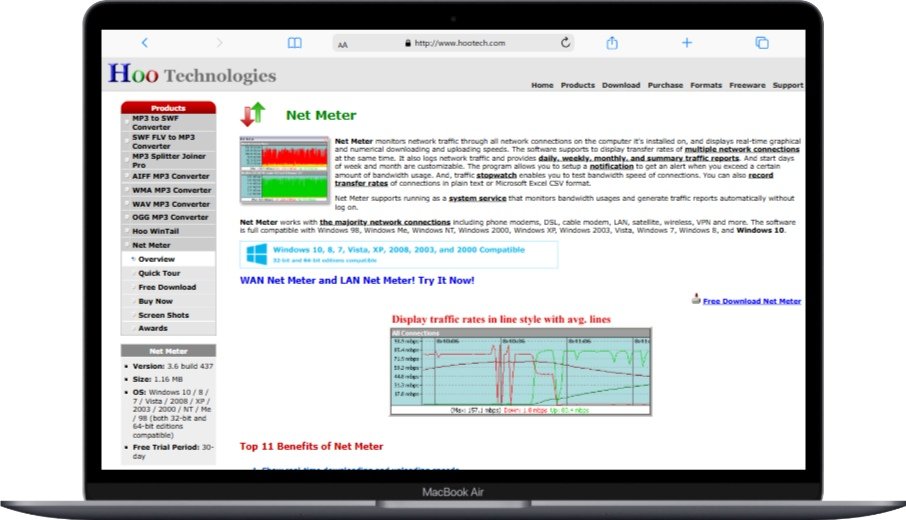
NetMeter is a free network monitoring and bandwidth testing tool that shows real-time network traffic. While mainly designed for monitoring, it includes speed testing capabilities that make it useful for checking network performance.
Key Features:
- Displays real-time graphical and numerical download/upload speeds
- View WAN and LAN transfer rates at the same time
- Bandwidth speed testing
- Bandwidth usage notifications with customizable alerts (sound, beep, email, or program execution)
- Logs network traffic and provides daily, weekly, monthly, and summary traffic reports
- Export reports to .txt, .html, and .csv formats
- Complete window configuration and view options
- Customizable alerts and notifications
- Traffic statistics and reporting
- Visual display of network usage
- Works on Windows
- Lightweight and efficient
How It Works: NetMeter monitors all network traffic on your computer, showing real-time upload and download speeds in a visual interface. For speed testing, it can measure the maximum speed of your network connection by generating traffic and measuring the transfer rate.
Pros:
- Real-time visualization of network traffic
- Customizable interface with multiple display options
- Historical data tracking and reporting
- Doesn’t use much computer power
- Free for both personal and business use
- No installation required (portable version available)
Cons:
- Only works on Windows
- Mainly focused on monitoring rather than testing
- Limited advanced testing features
- Outdated interface design
- No longer actively developed
- May have compatibility issues with newer operating systems
Best For: Users who want to continuously monitor their network traffic and occasionally test network speeds, especially those who prefer visual representations of network usage.
10. WiFi Analyzer (by Matt Hafner)
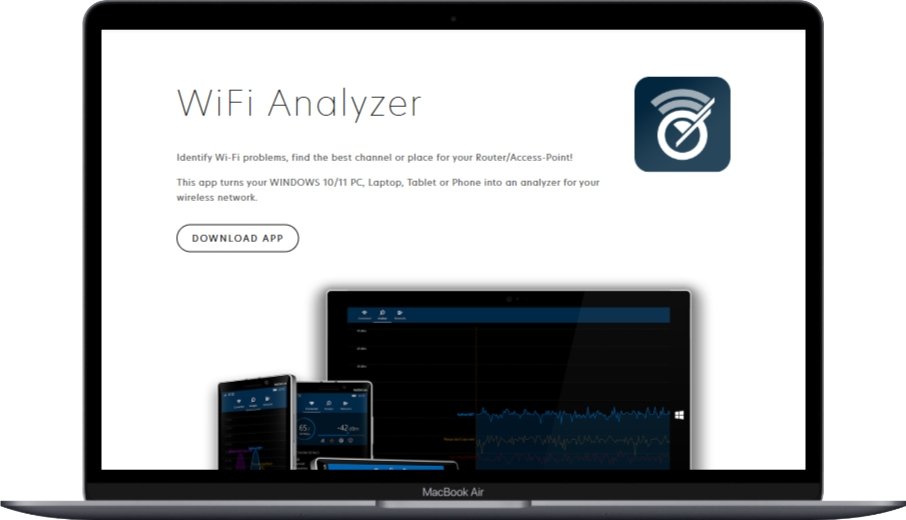
WiFi Analyzer is a free Android app designed to analyze Wi-Fi networks and optimize wireless performance. While mainly focused on Wi-Fi analysis, it includes speed testing capabilities that make it useful for checking wireless network performance.
Key Features:
- Discovers and analyzes Wi-Fi networks
- Supports 2.4 GHz, 5 GHz, and 6 GHz bands (including WiFi 6E/7)
- Helps find the best WiFi channel for your network
- Detects channel interference
- Visual display of signal strength
- Wi-Fi speed testing
- Measures signal strength with visual indicators (horizontal bars and dBm values)
- Shows SSID (network name) and BSSID (MAC address) of detected networks
- Displays authentication and encryption protocols (WPA2, WPA3, etc.)
- Shows PHY standards (802.11a/b/g/n/ac/ax/be)
- Works on Android devices
- 802.11ax/WiFi 6 support
- Works with various WiFi adapters and chipsets
- Simple, intuitive interface
How It Works: WiFi Analyzer scans for all nearby Wi-Fi networks and shows detailed information about each network, including signal strength, channel, and security settings. For speed testing, it measures the actual data transfer rate between your device and the wireless access point.
Pros:
- Excellent for choosing the best Wi-Fi channel
- Simple and intuitive interface
- Helps identify sources of wireless interference
- Provides real-time signal strength visualization
- Free for all Android users
- No technical knowledge needed for basic use
Cons:
- Only available for Android
- Mainly focused on Wi-Fi analysis
- Limited speed testing features
- Doesn’t save past test results
- Basic reporting capabilities
- Requires location access for full functionality
Best For: Android users who mainly use wireless networks and need to optimize Wi-Fi performance, identify interference sources, and measure actual wireless speeds.
How to Use LAN Speed Test Software Effectively
Using LAN speed test software effectively requires more than just clicking a “Start Test” button. To get accurate, helpful results that show you how to improve your network, follow these tips and techniques.
Preparing for Accurate Testing
Proper preparation is important for getting reliable LAN speed test results:
- Close Other Programs: Shut down any applications that might use the internet, like streaming services, cloud storage, or automatic updates. These can use bandwidth and affect your test results.
- Connect Directly: For the most accurate results, connect your computer directly to your router using an Ethernet cable instead of Wi-Fi, which can be affected by many factors.
- Update Network Drivers: Make sure your network adapter drivers are up to date, as old drivers can limit performance and give inaccurate test results.
- Restart Network Equipment: Turn off and on your modem, router, and switches before testing to clear any temporary issues that might affect performance.
- Test Multiple Times: Run several tests at different times of day to account for network usage variations and ensure consistent results.
- Use Appropriate Test Files: When testing file transfer speeds, use files of different sizes (small, medium, and large) to understand how your network performs with different transfer loads.
Interpreting Test Results
Understanding your test results is important for making good decisions about your network:
- Download vs. Upload Speeds: Most networks provide faster download speeds than upload speeds. Compare your results to your internet service plan to ensure you’re getting the expected performance.
- Latency (Ping): Measured in milliseconds (ms), latency shows how quickly data travels between devices. Lower latency values (under 30ms) are best for real-time applications like gaming and video calls.
- Jitter: This measures how much latency varies over time. High jitter can cause issues with real-time applications, even if average latency is low.
- Packet Loss: The percentage of data packets that don’t reach their destination. Any packet loss can significantly impact network performance, especially for real-time applications.
- Consistency: Look for consistency across multiple tests. Big differences may indicate network instability or interference issues.
- Comparison to Expectations: Compare your results to the rated speeds of your network equipment and internet service plan. If you’re consistently getting less than 80% of the expected speed, there may be an issue to address.
Troubleshooting Common Issues
Addressing network problems revealed by speed tests requires systematic troubleshooting:
- Restart Devices: The simplest solution is often the most effective. Restart your computer, router, and modem to clear temporary issues.
- Check Cables and Connections: Make sure all Ethernet cables are securely connected and in good condition. Replace any damaged cables.
- Update Firmware: Check for firmware updates for your router and other network equipment, as these updates often include performance improvements.
- Optimize Wi-Fi Settings: For wireless connections, try changing the Wi-Fi channel, adjusting the transmit power, or moving your router to reduce interference.
- Limit Connected Devices: Too many devices connected to your network can reduce available bandwidth. Disconnect unnecessary devices during testing.
- Check for Malware: Run a malware scan on your devices, as malicious software can use bandwidth and affect network performance.
- Contact Your ISP: If you’ve ruled out local issues and still experience poor performance, contact your internet service provider to check for problems on their end.
Common LAN Speed Issues and How to Fix Them
Network performance problems can significantly impact your online experience, causing frustration and lost productivity. Understanding common LAN speed issues and their solutions can help you maintain good network performance.
Slow Wired Connections
Wired connection issues can happen even with Ethernet connections, which are typically more reliable than wireless:
Causes:
- Old or damaged Ethernet cables
- Incorrect network adapter settings
- Outdated network drivers
- Faulty network equipment (routers, switches)
- Network congestion
Solutions:
- Replace Ethernet Cables: Use Cat 5e or higher category cables for Gigabit networks. Check for visible damage and replace any suspect cables.
- Check Network Adapter Settings: Make sure your network adapter is set up for maximum performance:
- Set speed and duplex to “Auto Negotiation” or the highest supported speed
- Enable features like “Large Send Offload” and “TCP Checksum Offload”
- Disable power-saving features that might reduce performance
- Update Network Drivers: Download the latest drivers for your network adapter from the manufacturer’s website.
- Restart Network Equipment: Turn off and on your router and switches to clear temporary issues.
- Check for Network Congestion: Use Task Manager (Windows) or Activity Monitor (Mac) to identify programs using excessive bandwidth.
Wi-Fi Performance Problems
Wireless network issues are among the most common causes of poor LAN performance:
Causes:
- Signal interference from other devices
- Physical obstructions between device and router
- Outdated Wi-Fi standards
- Incorrect channel selection
- Too many connected devices
- Router placement issues
Solutions:
- Optimize Router Placement: Put your router in a central location, away from walls, metal objects, and other electronics that might cause interference.
- Select the Best Wi-Fi Channel: Use a Wi-Fi analyzer app to find the least crowded channel in your area and set up your router accordingly.
- Update Wi-Fi Standards: If your router and devices support it, use Wi-Fi 5 (802.11ac) or Wi-Fi 6 (802.11ax) for better performance.
- Reduce Interference: Keep your router away from cordless phones, microwave ovens, baby monitors, and other devices that use similar frequencies.
- Limit Connected Devices: Disconnect devices that aren’t being used to free up bandwidth for active connections.
- Consider Wi-Fi Extenders or Mesh Systems: For large homes or offices, consider using Wi-Fi extenders or a mesh Wi-Fi system to improve coverage.
Network Congestion and Bandwidth Issues
Network congestion happens when too many devices compete for limited bandwidth:
Causes:
- Too many devices connected at the same time
- Bandwidth-heavy applications running
- Outdated network equipment
- Insufficient internet bandwidth
- Malware or unauthorized devices on the network
Solutions:
- Use Quality of Service (QoS): Set up QoS settings on your router to prioritize important applications like video calls or online gaming.
- Schedule Bandwidth-Heavy Activities: Run large downloads, backups, and updates during off-peak hours when network usage is lower.
- Upgrade Network Equipment: If your router or switches are more than a few years old, consider upgrading to newer models with better performance and more features.
- Increase Internet Bandwidth: If you consistently use more bandwidth than you have, consider upgrading to a higher-tier internet service plan.
- Secure Your Network: Make sure your Wi-Fi is secured with WPA2 or WPA3 encryption to prevent unauthorized devices from using your bandwidth.
- Monitor Network Usage: Use network monitoring tools to identify which devices and applications are using the most bandwidth.
Frequently Asked Questions (FAQ)
Do I need technical expertise to use LAN speed test software?
No, you don’t need technical expertise to use basic LAN speed test software. Many free tools like LAN Speed Test (Lite Edition) and Microsoft’s Network Speed Test are designed with simple interfaces that require just a few clicks to start testing. These tools show results that are easy to understand, even for beginners. However, advanced tools like iPerf3 may require some technical knowledge to set up properly and understand the detailed results they provide.
Can LAN speed test software improve my network speed?
No, LAN speed test software cannot directly improve your network speed. These tools are diagnostic utilities that measure and report your network’s performance but don’t have the ability to change or optimize your network settings. However, by identifying bottlenecks, performance issues, and areas for improvement, these tools give you valuable information that can guide you in making changes that will improve your network speed, such as upgrading equipment, adjusting settings, or moving devices.
Are free LAN speed test tools as accurate as paid ones?
Yes, many free LAN speed test tools are just as accurate as their paid counterparts. The accuracy of a network testing tool depends more on how it works and how it’s built than its price. Tools like iPerf3, which is free and open-source, are widely used by networking professionals and provide highly accurate measurements. However, paid tools often offer additional features like advanced reporting, historical data tracking, and technical support that may be valuable for business environments.
How often should I test my LAN speed?
Yes, you should test your LAN speed regularly to maintain good network performance. For most home users, testing once a month is enough to identify any gradual performance problems. For business environments or when troubleshooting specific issues, more frequent testing may be necessary. Additionally, you should test your network speed after making any changes to your network setup, such as adding new equipment, updating firmware, or changing settings, to make sure the changes had the desired effect.
Can LAN speed test software detect security issues?
No, most LAN speed test software is not designed to detect security issues. These tools focus on measuring network performance metrics like bandwidth, latency, and packet loss rather than identifying security vulnerabilities or unauthorized access. To detect security issues, you should use dedicated security tools like network scanners, intrusion detection systems, and antivirus software. However, unusually slow network speeds could potentially indicate a security problem, such as malware using bandwidth or unauthorized devices on your network, which would be worth investigating further.
Is it necessary to test both wired and wireless connections?
Yes, it is necessary to test both wired and wireless connections if you use both types of connections in your network. Wired and wireless connections have different performance characteristics and potential issues. Testing your wired connection helps establish a baseline for your network’s maximum possible performance, while testing your wireless connection shows how environmental factors, distance, and interference affect your actual user experience. By testing both, you can determine whether performance issues are related to your network equipment or your wireless setup.
Can I use LAN speed test software on mobile devices?
Yes, you can use LAN speed test software on mobile devices, though there may be fewer options compared to computers. Apps like WiFi Analyzer for Android and various network speed test apps available for both Android and iOS can measure wireless network performance. Some tools like iPerf3 also have mobile versions that allow you to test between mobile devices and computers on your network. However, for comprehensive testing, you’ll typically need at least one computer on your network to act as a server or testing endpoint.
Will LAN speed test software work with all types of networks?
Yes, most LAN speed test software will work with all types of local area networks, including Ethernet, Wi-Fi, and powerline networks. These tools are designed to measure data transfer rates regardless of the underlying network technology. However, the specific features and testing capabilities may vary depending on the software and the type of network. For example, some tools may offer specialized testing options for wireless networks that aren’t relevant for wired connections, and vice versa.
Can LAN speed test software measure internet speed?
Yes, many LAN speed test software tools can measure internet speed, though this is not their main purpose. Tools like Microsoft’s Network Speed Test are specifically designed to test internet connection speed by measuring data transfer rates to remote servers. However, traditional LAN speed test tools like iPerf3 and LAN Speed Test focus on measuring performance between devices on your local network rather than your connection to the internet. For accurate internet speed testing, it’s often better to use dedicated internet speed test services like Speedtest.net or Fast.com.
Is it safe to use free LAN speed test software?
Yes, it is generally safe to use free LAN speed test software from reputable sources. Tools like iPerf3, which is open-source and widely used by networking professionals, have been thoroughly checked for security and reliability. However, as with any software, you should download from official websites or trusted app stores to avoid potentially harmful versions. Additionally, be cautious about tools that ask for excessive permissions or request sensitive information, as these could be signs of security risks.
Conclusion
Testing your LAN speed is something you should do regularly to keep your network running smoothly. It helps you catch problems early before they start messing with your internet experience. The 10 free tools we’ve covered give you plenty of options whether you’re just starting out or you know your way around networks.
When you test your network regularly, you get a clear picture of how it’s performing. This helps you spot slowdowns, fix connection issues, and make sure you’re actually getting what you’re paying for from your internet service. Once you know how to use these tools and understand what they’re telling you, you’ll be better equipped to make smart choices about upgrades, settings changes, and how to fix problems when they come up.
Picking the right tool really comes down to what you need and how comfortable you are with technology. Most home users will do fine with simple tools like LAN Speed Test (Lite Edition) or Microsoft’s Network Speed Test. They get the job done without making you feel like you need a computer science degree. But if you’re an IT pro or just really into tech, you might prefer something more powerful like iPerf3 or NetStress that give you detailed information and lots of options to customize your tests.
Keeping your network in good shape isn’t just about running a speed test once in a while. Make it part of your regular routine, fix issues as soon as you notice them, and stay up to date on best practices for network optimization. This way, your network will keep delivering the performance you need whether you’re working, streaming movies, or gaming with friends.
Networks keep getting more important in our daily lives, and having the right tools to check and improve their performance matters more than ever. The free LAN speed test software available today gives you everything you need to understand your network better and keep it running well for whatever you throw at it.
You May Also Like
 SaaS
SaaS
11 Best VoIP Call Center Solutions for Small Business 2026 (Comparison Guide)
 Best Software
6 Best Software to Record Mouse and Keyboard Actions and Automate Repetitive Tasks
 Best Software
Jira vs Hive: Which Project Management Tool is Right for Your Team?
 Best Software
8 Best Free Registry Cleaners Tools to Clean Junk and Registry on Windows PC
 Best Software
12 Top Plumbing Management Software Solutions for 2026
 Best Software
ServiceTitan Pricing Explained: How Much Does ServiceTitan Cost for Your Business?
 Best Software
12 Best Construction Project Management Software For Your Businesses
 Best Software
The 10 Best Payroll Software for Small Business in 2026
 Best Software